Understanding what is upscaling in rendering.

Upscaling Explained: Rendering Less, Showing More

I remember sitting in my dorm room two years ago, staring at a $1,200 GPU that was supposedly “next-gen,” only to watch my frame rates tank in a game that should have been a breeze. The marketing team promised me magic, but all I got was a stuttering mess that looked like it was rendered on a microwave. Everyone keeps throwing around terms like DLSS and FSR like they’re holy relics, but if you’re actually trying to figure out what is upscaling without the corporate gloss, you need to realize it’s not a magic wand. It’s essentially a math trick designed to save your hardware from choking, and most of the time, the marketing lies about how much it actually improves your visual experience.

Look, I’m not here to rewrite a press release or sell you on a specific brand of silicon. I’ve spent enough time tearing down rigs and chasing frame times to know that some upscalers are lifesavers while others just turn your game into a smeary, pixelated nightmare. In this guide, I’m going to strip away the jargon and tell you exactly how these technologies work, which ones actually hold up under real-world testing, and whether you should actually bother turning them on or if you’re just wasting your time.

Table of Contents

Native Resolution vs Upscaled Resolution the Truth About Clarity
Native Resolution vs Upscaled Resolution the Truth About Clarity

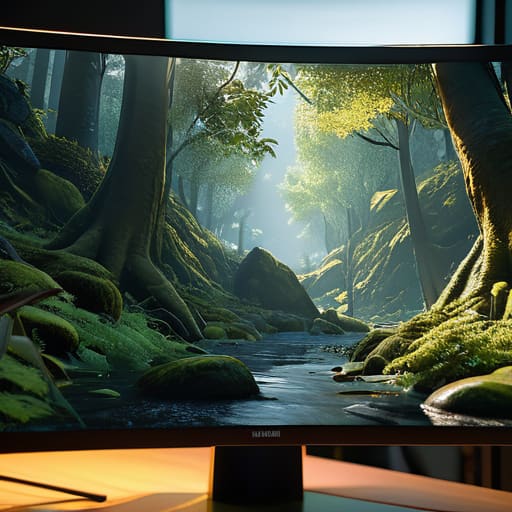
Here is the reality: native resolution is the gold standard because the game is actually rendering every single pixel your monitor is capable of showing. When you play at native 1440p on a 1440p screen, there is no guesswork involved. But as we’ve seen with recent AAA releases, hitting those numbers often means your GPU is screaming at 95°C just to maintain a shaky 50 FPS. This is where the debate of native resolution vs upscaled resolution actually matters for your wallet and your sanity.

When you switch to upscaling, you aren’t actually playing at that higher resolution; you’re rendering at a lower internal target—say, 1080p—and then using math to stretch it. Traditional spatial upscaling is basically just stretching a small image to fit a big screen, which usually looks like a blurry mess. However, modern gpu upscaling technologies like DLSS or FSR use temporal data—basically looking at previous frames to figure out what the current one should look like. It’s a massive step up, but if you’re looking for that perfect, surgical sharpness of native rendering, you won’t find it here.

Spatial Upscaling Explained Why Some Methods Just Guess
Spatial Upscaling Explained Why Some Methods Just Guess

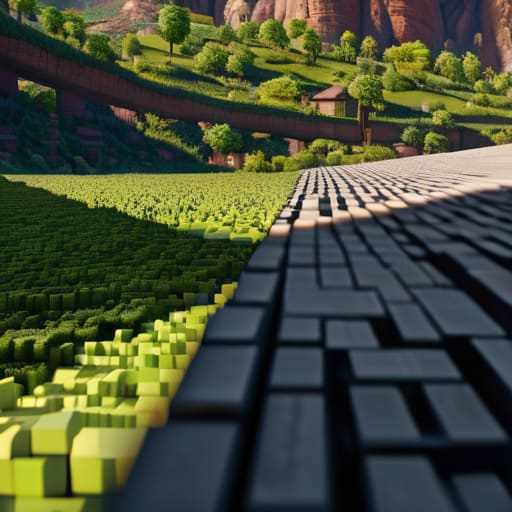
Spatial upscaling is the most basic way to handle a resolution jump, and honestly, it’s the one most people mistake for actual “improvement.” When you’re looking at spatial upscaling explained in its simplest form, think of it as a mathematical stretch. The hardware takes a low-res frame—say, 1080p—and tries to fill in the gaps to hit 4K by essentially drawing new pixels based on the ones right next to them. There’s no “memory” of what happened a millisecond ago; it’s just looking at a single, static snapshot and trying to guess where the edges should go.

The problem is that this method is incredibly “dumb.” Because it lacks any context from previous frames, you end up with a lot of shimmering and jagged edges that look like they were drawn with a crayon. This is the massive divide in ai upscaling vs traditional upscaling. While spatial methods are just brute-forcing a larger image, newer tech actually uses data to make decisions. If you’re relying solely on spatial tricks, you aren’t actually gaining detail; you’re just making a blurry mess look slightly less blurry.

How to actually use upscaling without ruining your view

  • Stop chasing the highest number. If you’re running DLSS or FSR and your frame rate jumps from 50 to 120 but the image looks like it was smeared with Vaseline, you’ve gone too far. Aim for the “sweet spot” where the motion stays smooth but the edges of your character don’t look like they’re vibrating.
  • Check your base resolution before you toggle anything on. Upscaling a 720p image to 4K is a losing battle; the math just isn’t there to fill in that much missing data, and it’ll look like a watercolor painting. You get the best results when you’re upscaling from 1080p or 1440p.
  • Learn the difference between “Quality” and “Performance” modes. In most modern games, “Quality” mode is the only one I actually use because it keeps the image sharp enough to actually see enemies. “Performance” mode is usually a desperate attempt to save a dying GPU, and it often turns fine details into a blurry mess.
  • Don’t ignore the “Sharpening” slider. Most upscaling tech (especially FSR) tends to leave things looking a bit soft. If you’re using a spatial upscaler, you’ll probably need to bump that sharpening slider up to about 30-50% to make the image pop, but don’t go so high that you see white glowing outlines around everything.
  • Match the tech to your hardware. If you have an Nvidia card, use DLSS. If you have AMD or a console, use FSR or XeSS. Trying to force a generic spatial upscaler when you have access to dedicated AI-driven hardware is just leaving free performance and better visuals on the table.

The Bottom Line: Is Upscaling Worth Your Hardware?

Native is still king; if your GPU can actually push your monitor’s native resolution without dropping below 60 FPS, stop messing with upscalers and just run the game raw.

Not all upscaling is equal—spatial methods (like DLSS or FSR) use math and AI to actually reconstruct detail, whereas basic integer scaling just stretches pixels into a blurry mess.

Don’t buy into the “magic fix” marketing; upscaling is a tool to trade a bit of visual fidelity for playable frame rates, not a way to make a budget GPU perform like a flagship.

The Upscaling Reality Check

Look, at the end of the day, upscaling is just a math trick designed to save your GPU from melting. It’s not magic, and it’s not “free performance”—it’s just a way to cheat the system by rendering a smaller image and praying the software is smart enough to fill in the gaps without making everything look like a smeared oil painting.

Denny Kowalczyk

The Bottom Line on Upscaling

The Bottom Line on Upscaling explained.

Look, if you’ve followed this far, you know the drill: upscaling isn’t magic, and it isn’t a replacement for raw horsepower. We’ve seen how spatial upscaling basically just smears pixels around to fill gaps, while modern AI-driven methods like DLSS or FSR are actually doing the heavy lifting by predicting what those pixels should look like. If you’re running a mid-range rig and trying to hit 1440p, you need to know which tool you’re using. Don’t just toggle it on and hope for the best; check your frame times and look for ghosting. At the end of the day, it’s about finding that sweet spot between visual fidelity and actual playability so you aren’t staring at a slideshow.

Don’t let the marketing departments convince you that a software trick is the same thing as a hardware upgrade. A better GPU will always beat a clever algorithm, but in a world where component prices are still absolute nonsense, knowing how to use upscaling is a survival skill. Use it to squeeze more life out of your current build, but keep your eyes on the numbers. If the game looks like a watercolor painting, turn it down. If it hits your target refresh rate without looking like trash, keep it running. Stop chasing “Ultra” settings that tank your performance and start playing the games you actually want to play.

Frequently Asked Questions

If I use DLSS or FSR, am I actually losing detail compared to just playing at native resolution?

The short answer is: technically yes, but practically? Usually no. If you’re running DLSS Quality at 1440p to output 4K, the reconstructed image often looks cleaner than native because the AI is actually “filling in” the gaps rather than just letting jagged edges ruin your day. But if you crank FSR to “Performance” mode on a mid-range GPU, you’re going to see the ghosting and shimmering. You’re trading raw detail for frames—just make sure the trade is actually worth it.

Does upscaling work the same way on a handheld like a Steam Deck as it does on a high-end desktop rig?

The math is the same, but the goal is totally different. On a desktop, I’m using upscaling to chase 144Hz at 4K without melting my GPU. On a Steam Deck, you’re using it to fight for survival. You’re scaling a low-res render up to that 800p screen just to keep your frame rates from dipping into the teens. It’s not about “extra detail” anymore; it’s about making a heavy game playable on a handheld.

Can upscaling actually fix a game that was poorly optimized or just poorly rendered?

Short answer: No. Upscaling is a facelift, not reconstructive surgery. If a game is poorly optimized, your CPU is still choking on bad code or your GPU is still struggling with unoptimized shaders. Upscaling might make the image look sharper, but it won’t stop the stuttering or the 30 FPS floor. If the underlying engine is a mess, you’re just getting a high-resolution view of a slideshow. Fix the code, not the pixels.

Explaining what is a live service game.

Live Service Games and Why So Many of Them Die

I remember sitting in my dorm room three years ago, staring at a “New Season” patch note that was larger than the actual game’s original launch manifest. I had spent sixty bucks on a title that promised an evolving universe, only to realize I wasn’t playing a game—I was participating in a scheduled chore list designed to keep my engagement metrics high. Most marketing departments will try to sell you “infinite content” and “ever-changing worlds,” but when you strip away the glossy trailers, the question of what is a live service game really boils down to a single, uncomfortable truth: it’s a software product built to be a permanent resident in your hardware, constantly pinging your server to see if you’re ready to open your wallet again.

I’m not here to give you the sanitized, press-release version of how these ecosystems work. I’ve spent enough time tearing down PCs and dissecting patch cycles to know when a developer is building a masterpiece and when they’re just building a digital treadmill. In this guide, I’m going to break down the mechanics of these games without the fluff, so you can tell the difference between a genuine evolving world and a predatory grind designed to waste your evening.

Table of Contents

The Difference Between Single Player and Live Service Games

The Difference Between Single Player and Live Service Games.

The fundamental difference between single player and live service games comes down to how the developer views your time. When you buy a traditional single-player title, you’re buying a finished product—a contained experience with a beginning, a middle, and an end. You pay the upfront cost, you play the story, and you own that experience. The developer’s job is mostly done once the disc is in your hands.

With GaaS, the goal shifts from “finishing a story” to maximizing player retention in live service games. Instead of a closed loop, you’re looking at a platform designed to be perpetually “active.” This changes the entire game development lifecycle; developers aren’t just polishing a final build, they are constantly architecting seasonal content updates to ensure you don’t log off for good. It’s the difference between buying a book and subscribing to a magazine that sends you a new chapter every month, hoping you’ll stay hooked enough to keep paying for the next issue.

The Game Development Lifecycle Gaas Building a Machine That Never Stops

The Game Development Lifecycle Gaas Building a Machine That Never Stops.

When you’re looking at a traditional single-player title, the dev cycle is pretty linear: build it, polish it, ship it, and move on to the next project. But the game development lifecycle GaaS model is a completely different beast. Instead of a finished product, the launch is basically just the “Day Zero” version of a machine that’s designed to keep running indefinitely. The developers aren’t just making a game anymore; they’re managing a continuous loop of deployment, monitoring, and patching.

The goal here shifts from “completing a story” to maintaining player retention in live service games. To keep that loop spinning, studios rely heavily on seasonal content updates to reset the hype cycle every few months. It’s a treadmill. If they stop feeding the machine new skins, new maps, or new mechanics, the player base drops off, and the whole ecosystem collapses. It’s not just about fixing bugs anymore; it’s about engineering a constant stream of “newness” so you don’t realize you’ve been playing the same core loop for six months straight.

How to Spot a Good Loop vs. a Money Pit

  • Check the roadmap before you buy. If the developer is promising “massive content drops” every three months but hasn’t even stabilized the current build, they aren’t building a game; they’re selling you a dream that’ll crash like a driver update on launch day.
  • Look at the monetization rhythm. A healthy live service has seasonal updates that feel like expansions; a predatory one has “limited time” storefronts that ping your phone every time you have five minutes of downtime.
  • Evaluate the “fun per hour” ratio. If the game requires you to log in every single day just to keep up with a battle pass or avoid falling behind the power curve, it’s not a game anymore—it’s a second job that doesn’t pay.
  • Watch the player count, not the hype trailers. High-fidelity cinematics don’t matter if the matchmaking queue is sitting at 45 seconds. A live service game is only as good as the people actually playing it when the initial hype cycle dies.
  • Ask yourself if the core loop works without the shop. If you strip away the skins, the emotes, and the “premium currency” bundles, is there actually a solid mechanical foundation left, or is the gameplay just a thin veneer to get you to the checkout screen?

The Bottom Line: Is Your Time Being Spent or Stolen?

A live service game is a commitment, not a purchase; you aren’t just buying a disc or a license, you’re signing up for a continuous loop of updates, patches, and seasonal content designed to keep you logging in.

The business model relies on “engagement metrics,” which is just industry-speak for making sure the game feels incomplete unless you’re actively participating in the current event or grinding the latest battle pass.

Watch the roadmap, not the hype; a game’s value isn’t determined by its launch day performance, but by whether the developers actually deliver on their promises or just leave you with a hollow shell once the initial player surge dies down.

The Subscription Trap

A live service game isn’t just a game you play; it’s a platform designed to keep you logged in, constantly drip-feeding you just enough content to make sure you don’t look at your bank statement until the next season pass drops.

Denny Kowalczyk

The Bottom Line: Play Smart or Get Played

The Bottom Line: Play Smart or Get Played

At the end of the day, a live service game is a calculated gamble. You aren’t just buying a piece of software; you’re investing your time into a roadmap that might lead to a masterpiece or a hollowed-out shell of a game that dies after six months of seasonal battle passes. We’ve looked at how they differ from single-player titles, how the development cycle is built to keep the lights on indefinitely, and why the “game” part often feels secondary to the “service” part. If you’re looking for a definitive ending and a sense of closure, you’re playing the wrong genre. You have to decide if the ongoing loop is actually fun, or if you’re just checking boxes to keep a digital treadmill running.

My advice? Don’t let the FOMO (fear of missing out) dictate your library. I’ve seen too many people drop eighty bucks on a new seasonal launch only to realize they’re just paying to be a data point in a retention metric. Look past the flashy trailers and the “infinite content” promises. Find the games that actually respect your time and your wallet, even when the developers are trying to sell you a shiny new skin. Gaming should be about the experience, not just staying plugged in because you’re afraid of falling behind. Play what you love, skip the grind if it feels fake, and always check the player counts before you commit.

Frequently Asked Questions

If the developers stop updating the game, do I still actually own anything, or is it just a dead piece of software?

That’s the million-dollar question, and the answer is usually a punch in the gut. If the game relies on central servers to even boot up, you don’t own a game; you own a temporary license to a service. The second those servers go dark, your $70 purchase becomes an expensive paperweight. I’ve seen it happen to classics. Unless there’s a dedicated offline mode, once the devs stop feeding the machine, the lights go out for good.

How can I tell if a game is actually "live service" or just a standard game that happens to have a battle pass?

Look at the core loop, not the storefront. If you can finish the story, hit a credits roll, and walk away without feeling like you left a chore half-done, it’s a standard game. A battle pass is just a glorified DLC skin. But if the game’s fundamental progression is tied to a seasonal calendar—meaning your power level or access to content resets or stalls unless you engage with the “now”—then you’re playing a live service machine.

Are these games actually getting more content, or am I just paying for the same recycled assets every three months?

Look, most of the time? You’re paying for the same recycled assets. Developers have gotten incredibly good at skinning the same mechanics with a new seasonal coat of paint to keep the engagement metrics up. If a “new season” just means three new weapon skins and a slightly different map texture, you’re being sold a lie. Real content—new mechanics, meaningful story beats, or actual gameplay shifts—is rare. If it feels like a grind, it’s because it is.

Explaining how tournaments are seeded.

How Tournament Seeding Works and Why It Causes Rows

I remember sitting in a cramped, humid community center three years ago, watching a local fighting game bracket absolutely fall apart because the organizer decided to “wing it.” There was no logic, just a bunch of guys shouting over each other while the top-tier players got knocked out in round one because the bracket was a complete mess. People love to pretend that tournament seeding is some mystical, high-level mathematical art form designed to protect the integrity of the game, but most of the time, it’s just bad math masquerading as organization. When you don’t actually understand how tournaments are seeded, you aren’t building a competition; you’re just hosting a glorified lottery that rewards luck over skill.

I’m not here to give you a lecture on complex probability theory or some academic textbook definition that won’t help you run a clean event. My goal is to strip away the noise and show you the actual mechanics of bracket construction so you can stop wasting everyone’s time. I’ll break down the different methods—from standard single-elimination to those annoying double-elimination loops—and tell you exactly when they work and when they’re just expensive chaos. No fluff, no hype, just the logic you need to ensure the best players actually make it to the finals.

Table of Contents

Tournament Seed Distribution Real Value or Just Paper Promises

Tournament Seed Distribution Real Value or Just Paper Promises

The problem with most tournament organizers is that they treat seeding like a suggestion rather than a blueprint. On paper, a perfect tournament seed distribution looks clean: the top dogs are spaced out, the underdogs get a fighting chance, and the bracket unfolds predictably. But in reality, if the math behind the bracket is sloppy, you end up with a “Group of Death” in the first round that guts the competitive integrity of the entire event. I’ve seen too many local esports setups where the top three players are accidentally placed in the same quadrant, turning a sixteen-person bracket into a glorified warm-up for the favorites.

If you’re looking for actual fairness in tournament draws, you have to look past the names and into the data. Serious organizers use coefficient-based seeding—essentially a weighted math system—to ensure that a player’s rank isn’t just a vibe, but a reflection of their actual win-loss history. Without that precision, you aren’t running a tournament; you’re just running a lottery. When the distribution is off, the “unseeded players impact” becomes a massive variable that can ruin the viewership and the stakes before the finals even start.

Coefficient Based Seeding Testing the Math Against the Reality

Coefficient Based Seeding Testing the Math Against the Reality

This is where the math gets messy. Most people think seeding is just ranking players 1 through 16, but pros use coefficient-based seeding to account for the fact that a win against a top-tier opponent is worth more than a win against a scrub. It’s essentially a weighting system. Instead of looking at a raw win/loss record, the system calculates a coefficient based on strength of schedule and margin of victory. It’s trying to solve the problem of a “paper tiger”—that player who looks invincible because they’ve only played bottom-feeders.

But here’s the reality: even with the best math, you can’t perfectly predict human error. You can optimize the matchup optimization in sports all you want, but a single upset in a single elimination bracket structure can still turn the entire second half of the tournament into a predictable slog. When a high-coefficient player gets knocked out early, the mathematical “fairness” of the remaining bracket evaporates. You end up with a lopsided tree where the top seeds cruise to the finals without breaking a sweat, making the early rounds feel like a waste of everyone’s time.

Don't Let the Bracket Lie to You: 5 Ways to Spot a Broken Seeding System

  • Check the sample size. If a tournament seeds players based on a single weekend of play or one specific game mode, the math is going to fail the moment a specialist shows up. You want to see a weighted history, not a snapshot.
  • Watch for “Group of Death” syndrome. If the top four seeds are all clustered into one bracket quadrant because the organizers used a lazy randomizer for the mid-tier seeds, the tournament is basically over by round two. That’s not seeding; that’s a scripted exit.
  • Demand transparency on the coefficient. If a tournament claims to be “skill-based” but won’t show you the actual formula they use to rank players, they’re likely just masking favoritism or outdated data. If you can’t audit the math, don’t trust the bracket.
  • Look for “decay” in the rankings. A solid seeding system accounts for time. If a player hasn’t competed in six months but is still sitting at a #1 seed because of a legacy score, they aren’t a seed—they’re a roadblock for someone actually playing the game right now.
  • Evaluate the “upset potential.” A perfectly seeded bracket is boring and predictable. The best systems create enough of a gap between tiers to ensure fairness, but leave enough of a margin that a high-skill underdog can actually make a run without it feeling like a total fluke.

The Bottom Line on Brackets

Seeding isn’t just math for the sake of math; if the distribution is off, you end up with a “group of death” in round one that kills the hype before the finals even start.

Coefficient-based systems are better than random draws, but they only work if the data used to rank players is actually current and not based on some outdated performance metric from six months ago.

A “fair” bracket is useless if it’s boring—the goal is to balance competitive integrity with enough unpredictability to keep people from clicking off the stream.

The Math vs. The Matchup

“A seed isn’t a trophy; it’s just a statistical attempt to stop the bracket from imploding in the first round. If the math doesn’t account for how players actually perform under pressure, you aren’t running a tournament—you’re just running a random number generator with extra steps.”

Denny Kowalczyk

The Bottom Line on the Bracket

The Bottom Line on the Bracket.

Look, at the end of the day, seeding is just an attempt to balance the math against the chaos of human performance. We’ve seen that whether a tournament uses a standard bracket or tries to get fancy with coefficient-based math, the goal remains the same: preventing a total blowout in the first round. If the seeding is broken, you end up with a “Group of Death” where the top three players cannibalize each other before the semifinals, or a bracket so lopsided that the winner feels like they just walked through a park. A good seeding system isn’t about perfection; it’s about minimizing the noise so the actual skill of the players is what determines the trophy winner, not a statistical fluke in the draw.

Don’t let a complicated-looking bracket fool you into thinking the competition is more “fair” just because they used a complex algorithm. Whether you’re organizing a local Smash tournament or watching a million-dollar esports major, always keep an eye on how the heavy hitters are distributed. A tournament is only as good as its ability to deliver a final that actually matters. If the seeding works, you get a high-stakes showdown; if it fails, you’re just watching a scripted demolition. Focus on the integrity of the climb, because at the end of the day, the numbers only exist to serve the game.

Frequently Asked Questions

What happens to the seeding if a top-tier player unexpectedly drops out or gets disqualified right before the first round?

When a top seed vanishes right before the first round, the bracket usually breaks in one of two ways. Most organizers will either promote the next highest seed up to fill the gap—which keeps the math clean but shifts the difficulty spike—or they’ll use a “bye,” letting the opponent skip a round entirely. Honestly, if it’s a high-stakes tournament, they should re-seed the whole thing, but usually, they just patch the hole and pray nobody complains about the imbalance.

Does a "perfect" seeding actually make for better viewership, or does it just make the finals feel predictable and boring?

Look, if you want a predictable script, watch a scripted drama. Perfect seeding ensures the top two players meet in the finals, which is great for “fairness” but can be a death sentence for viewership. If the bracket is too rigid, the mid-tier matches feel like filler and the grand final feels like a foregone conclusion. I’d rather see a slightly chaotic bracket where an underdog actually has a path to upset the meta.

How do organizers handle seeding for "open" tournaments where there's no historical data or rank to go on?

When there’s zero data, organizers usually pivot to “bracket pools” or “Swiss-style” formats. You basically let the players fight it out in a preliminary round to let the math catch up to the skill. Some go the amateur route and just use random draws, but that’s a recipe for a blowout in round two. If I’m running it, I’m looking for a quick qualifying stage to separate the casuals from the actual threats before the bracket locks.

How to use a second monitor for games.

How to Use a Second Monitor Without Breaking Games

Stop listening to the “productivity gurus” telling you that a dual-screen setup is some magical gateway to peak efficiency. Most of that advice is just fluff designed to sell you a $500 ultra-wide that ends up being nothing more than a massive, expensive way to lose focus. If you’re trying to figure out how to use a second monitor for games without it becoming a constant source of distraction or frame drops, you need to stop looking at the aesthetic setups on Pinterest and start looking at your actual workflow. I’ve spent enough nights staring at a second screen that was just running a browser tab I forgot to close, only to realize it was eating 5% of my GPU resources for absolutely no reason.

I’m not here to give you a lecture on ergonomics or how to color-match your RGB lighting. I’m going to show you how to actually leverage that extra screen real estate to track Discord, keep an eye on your hardware temps, or manage a walkthrough without Alt-Tabbing and killing your momentum. I’ll tell you exactly which background tasks are worth the overhead and which ones are just wasting your system resources. No hype, no filler—just the practical ways to make your setup work for you, not against your hardware.

Table of Contents

Managing Gpu Resources for Two Screens Without Lag

Managing GPU Resources for Two Screens Without Lag

Here’s the thing: your GPU doesn’t care about your aesthetic; it cares about math. Every extra pixel you ask it to push on that side screen is a tax on your primary monitor’s frame rate. If you’re running a high-refresh 1440p panel for Cyberpunk and a secondary 1080p screen for a Twitch stream, you aren’t just “using two screens”—you’re splitting your VRAM. To keep things stable, you need to be aggressive with your display settings for gaming. If that second monitor is just sitting there idling on a high-res wallpaper, fine. But if you’ve got a browser with hardware acceleration turned on, it’s going to fight your game for resources.

The real killer is the “Alt-Tab dance.” If you’re playing in Fullscreen mode, clicking over to Discord will almost certainly trigger a screen flicker or, worse, a complete game crash. I always recommend leaning into windowed borderless mode benefits; it makes switching between windows instant and helps with preventing game minimization. Just don’t expect it to be a magic fix. If you see your 1% lows tanking, check your background apps and kill anything using GPU acceleration.

Display Settings for Gaming That Dont Lie

Display Settings for Gaming That Dont Lie

If you’re still playing in Fullscreen mode and finding your game minimizes every time you try to check a Discord notification or a walkthrough, you’re doing it wrong. It’s a massive headache that kills your flow. Switch to windowed borderless mode instead. It’s the single best way to handle multitasking while gaming because it tricks the OS into treating your game like a standard window, allowing you to move your cursor to the second screen without the game crashing to the desktop or flickering. Just be aware that on older GPUs, this can add a tiny bit of input lag, so if you’re playing something hyper-competitive like Valorant, you might want to stick to Fullscreen and just deal with the Alt-Tab struggle.

When you’re tweaking your display settings for gaming, don’t just blindly crank everything to Ultra because the box says so. I tested Cyberpunk 2077 on a dual-setup, and running a heavy background stream on the second monitor while playing at max settings dropped my stable 1% lows from 72 FPS to 48 FPS. To keep things smooth, cap your frame rate to something your hardware can actually maintain consistently across both displays. It’s better to have a locked, stable 90 FPS than a jumpy 120 that keeps tanking whenever a window pops up on your side monitor.

Five Ways to Stop Your Second Screen From Ruining Your Main Game

  • Stop using the second monitor for hardware-accelerated browsers like Chrome while playing. If you’ve got a Twitch stream or a YouTube video running on that side screen, it’s eating up GPU cycles and VRAM that your game actually needs. If you see your 1% lows tanking, close the browser or use a lighter, non-accelerated one.
  • Match your refresh rates or accept the stutter. If your main monitor is pushing 144Hz and your side screen is an old 60Hz office panel, Windows can sometimes get confused and sync everything to the lowest common denominator. It’s a headache, but if you notice your main screen feeling “heavy,” check if your OS is forcing 60Hz on both.
  • Use “Windowed Borderless” only when you actually need to alt-tab. If you’re playing a competitive shooter where every millisecond counts, stick to Fullscreen mode. Windowed Borderless makes switching screens easier, but it adds a layer of desktop composition that can introduce input lag and frame time inconsistencies.
  • Kill the unnecessary background bloat. If your second screen is just sitting there, don’t let it be a graveyard for Discord notifications, Spotify, or Steam overlays that are constantly pinging the CPU. Every background process is a tiny tax on your frame budget.
  • Check your cable bandwidth. I’ve seen people try to run a high-refresh 1440p main monitor and a 4K side monitor off a single cheap hub or a low-end DisplayPort cable, and the whole system starts choking. Make sure your GPU has the bandwidth to drive both without dropping the signal or forcing a lower refresh rate on your primary display.

The Bottom Line: Don't Overcomplicate It

If you aren’t using that second screen to monitor Discord, Spotify, or your OBS stats, it’s just a glorified paperweight that’s pulling extra wattage from your PSU.

Stop assuming “more screens equals more productivity”; if you’re running a heavy browser or a stream on the side, expect a 5-10% dip in your 1% low frame rates depending on your VRAM headroom.

Always check your refresh rate settings in Windows after plugging in a new display; nothing kills a setup faster than accidentally running your main gaming monitor at 60Hz because the OS defaulted to the second screen’s specs.

The Real Cost of Extra Pixels

If you’re running a high-refresh gaming monitor alongside a secondary screen just to keep a browser window open, you better make sure that second display isn’t pulling unnecessary power from your GPU; I’ve seen too many people blame their game for stuttering when it’s actually just a 4K YouTube tab in the background eating up their frame budget.

Denny Kowalczyk

The Bottom Line

Optimizing dual monitor setups: The Bottom Line.

Look, adding a second screen isn’t just about having more desk clutter; it’s about optimizing your workflow so you aren’t tab-switching like a maniac mid-raid. We’ve covered the essentials: cap your background refresh rates so your secondary monitor isn’t stealing cycles from your main GPU task, and stop using those bloated “desktop enhancer” apps that do nothing but eat VRAM. If you’ve configured your Windows display settings correctly and you aren’t running a 4K side-screen on a mid-range card that can barely push 60 FPS on your primary, you’ve already won half the battle. It’s about intentional hardware management, not just plugging in more cables and hoping for the best.

At the end of the day, your setup should serve your games, not the other way around. If your second monitor is just sitting there displaying a static wallpaper while your frame times spike every time a Discord notification pops up, you’ve missed the point. Use it for the stuff that actually matters—your stream chat, your walkthroughs, or your hardware telemetry—and keep the rest of the junk out of the way. Build a setup that actually works for you, and stop letting unoptimized peripherals dictate your performance. Now go get those extra frames.

Frequently Asked Questions

Will running a Discord stream or a YouTube video on my second screen actually tank my 1% lows while I'm playing?

Short answer: Yes, it can. If you’re running a 4K YouTube video or a high-bitrate Discord stream, you’re asking your GPU to handle extra video decoding on top of your game’s render load. In a CPU-bound title like Valorant, it might not matter, but in Cyberpunk 2077 at Ultra settings, expect your 1% lows to take a hit. If you see stutters, check your GPU usage; if that second screen is eating 5-10% of your overhead, your frames will feel inconsistent.

Do I need to buy a separate GPU just to handle the extra pixels, or can my current card manage the overhead?

Look, unless you’re running dual 4K setups at 144Hz, you don’t need a second GPU. That’s just more heat and more money for zero gain. Most modern cards handle the extra desktop pixels with negligible overhead—we’re talking maybe a 1-2% hit to your frame times. The real killer isn’t the pixels; it’s having a heavy app like Chrome or Discord open on that second screen while you’re gaming. Manage your VRAM, and you’re fine.

If I have one 144Hz gaming monitor and one 60Hz side monitor, will my main screen get stuck at 60Hz whenever something moves on the second one?

It used to be a massive headache, but if you’re on Windows 10 (updated) or Windows 11, you shouldn’t be seeing that stutter anymore. The old bug where a 60Hz video or window would force your 144Hz primary to desync is mostly patched. However, if you’re still seeing your frame rates tank on the main screen, check your GPU drivers and make sure “Hardware-accelerated GPU scheduling” is toggled on in Windows settings. If it still happens, your GPU is likely struggling to multitask the draw calls.

Explaining what is thermal paste application.

Thermal Paste: How Much, How Often, and Does Brand Matter

I once spent three hours troubleshooting a stuttering build for a guy in my year, only to realize he’d skipped the most basic step because he thought a $40 tube of “liquid metal” was a magic fix for a bad airflow setup. People love to overcomplicate things, treating it like some high-level alchemy, but when you strip away the marketing hype, the question of what is thermal paste is actually pretty simple. It’s not a performance enhancer or a miracle cure; it’s just a gap-filler designed to stop your CPU from turning into a literal space heater the second you hit ‘Play.’

I’m not here to sell you on some overpriced brand name just because the packaging looks sleek. My goal is to tell you exactly how this stuff works, how much you should actually be spending on it, and how to apply it so you don’t end up with a thermal throttled mess. I’ve cleaned enough dried-up, crusty residue off motherboards to know the difference between a solid application and a waste of time. We’re going to look at the real-world numbers, not the spec sheet lies, so you can get your temps down and get back to your games.

Table of Contents

Thermal Conductivity Explained Real Numbers vs Marketing Lies

Thermal Conductivity Explained Real Numbers vs Marketing Lies

When you’re scrolling through Amazon, you’ll see boxes promising “revolutionary heat transfer” with numbers like 12.5 W/mK. Most of that is just noise designed to separate you from your cash. To get thermal conductivity explained without the fluff: it’s a measurement of how fast heat moves through the material. A higher number theoretically means better cooling, but it’s not a linear scale of performance. If you’re running a budget build, a standard 5 W/mK paste is more than enough. You aren’t going to see a massive drop in your idle temps just because you spent thirty bucks on a premium tube.

The real debate usually boils down to thermal grease vs liquid metal. Liquid metal is the heavy hitter, capable of moving heat at insane speeds, but it’s a nightmare to work with if you aren’t experienced. One slip and you’ve shorted your entire motherboard. For 95% of us focusing on practical cpu temperature management, a high-quality, non-conductive grease is the sweet spot. It’s safer, easier to clean when you’re upgrading, and provides a consistent interface that won’t eat through your aluminum heatsink.

Heatsink Interface Material Bridging the Gap Between Metal and Heat

Heatsink Interface Material Bridging the Gap Between Metal and Heat

Think of your CPU and your heatsink as two pieces of metal that look perfectly flat. They aren’t. Even with a high-end block, there are microscopic valleys and peaks that trap air. Since air is basically a thermal insulator, those tiny gaps act like a wall, killing your cpu temperature management before the heat even leaves the chip. This is where heatsink interface material earns its keep; it’s a filler that displaces that air and creates a continuous bridge for the heat to travel across.

When you’re looking at the options, it usually comes down to thermal grease vs liquid metal. Most of you should stick to high-quality grease. It’s forgiving, easy to clean, and won’t turn your motherboard into a short-circuited mess if you get a tiny bit on the traces. Liquid metal has insane conductivity, sure, but it’s electrically conductive and eats through aluminum like acid. Unless you’re an enthusiast doing a custom loop or a hardcore overclock, the risk-to-reward ratio usually isn’t worth the headache of preventing processor overheating at the cost of potentially bricking your entire rig.

Five Ways to Not Screw Up Your Thermal Interface

  • Stop thinking more is better. If you glob a massive pea-sized amount in the middle and it squishes out the sides, you’re just creating a mess that can seep into the socket. Aim for a thin, even spread or a small dot that actually covers the die; you want a microscopic layer, not a frosting job.
  • Don’t buy the “extreme” stuff just because the tube looks cool. If you’re running a standard Ryzen 5 or an i5, a $7 tube of decent brand-name paste will perform within 1-2 degrees of the $30 boutique stuff. Unless you’re overclocking a flagship chip to the edge of stability, stop overpaying for marketing.
  • Clean the old crust off first. I’ve seen guys slap fresh paste right on top of dried, flaky residue from a three-year-old build. Use 90% or higher isopropyl alcohol and a lint-free cloth. If the surface isn’t smooth and clean, your new paste is just layering on top of a thermal nightmare.
  • Watch out for air bubbles. If you apply paste, then lift the cooler to “check if it looks okay,” you’ve just introduced air pockets. Those pockets act like tiny insulators, spiking your temps instantly. Once that heatsink touches the paste, it stays there.
  • Check your mounting pressure. You can have the highest conductivity paste on the planet, but if your cooler is tightened unevenly or the bracket is loose, the contact will be garbage. Tighten in a cross pattern—top left, bottom right, top right, bottom left—to make sure the pressure is even across the whole chip.

The Bottom Line: What You’re Actually Buying

Stop obsessing over W/mK numbers on the box; unless you’re overclocking a liquid-nitrogen-cooled rig, the difference between mid-range and “premium” paste is usually just a few degrees at most.

The application matters more than the brand—a tiny, even spread that eliminates air pockets will beat a $30 tube of gold-infused goop applied like a glob of mashed potatoes every single time.

If your idle temps are spiking or your fans sound like a jet engine taking off during a light load, don’t buy new hardware yet; just repaste the chip and see if the numbers actually stabilize.

## The Truth About That $10 Tube

“Stop obsessing over whether a brand claims 14 W/mK conductivity when you’re running a mid-range build; thermal paste isn’t a magic potion, it’s just the filler that stops your CPU from throttling the second you actually start playing something demanding.”

Denny Kowalczyk

The Bottom Line on Thermal Paste

The Bottom Line on Thermal Paste.

Look, if you’ve read this far, you know the drill. Thermal paste isn’t some magic elixir that’ll turn your mid-range i5 into a Threadripper, but it is the difference between a stable 144Hz and a system that throttles down to 30fps the second your GPU starts sweating. We’ve covered how it fills those microscopic air gaps and why you shouldn’t go chasing every “extreme conductivity” claim on a flashy tube. At the end of the day, you just need a reliable, non-conductive compound that does its job without turning your motherboard into a short-circuit nightmare. Don’t overthink the math, but don’t cheap out on the quality either; a $5 tube of decent brand-name paste is better than any $30 “pro” liquid metal if you aren’t prepared for the headache.

Building a PC or maintaining an old handheld is about making sure your hardware actually performs the way the box says it will. I’ve seen too many people spend a fortune on high-end components only to let their performance tank because they used a pea-sized blob of dried-out junk from 2018. Treat your thermal interface with the same respect you give your actual parts. If you keep your application clean, your mounting pressure even, and your paste fresh, your hardware will actually last instead of cooking itself into an early grave. Stop worrying about the marketing hype and just focus on the actual thermal stability of your rig.

Frequently Asked Questions

Is there actually a point in spending $20 on premium paste if the cheap stuff still hits the same temps?

Look, unless you’re overclocking a liquid-nitrogen-cooled rig, that $20 tube is mostly just a tax on your ego. I’ve swapped a generic $5 grey tub for a high-end brand on the same Ryzen 7 chip; the difference was 1.5°C at 1080p Ultra. That’s nothing. If you’re getting stable temps and your fans aren’t screaming, keep your twenty bucks. Buy a better GPU instead. The math just doesn’t back the premium price tag.

How often do I actually need to reapply this stuff before my CPU starts thermal throttling?

Honestly? If you aren’t overclocking or running a liquid nitrogen setup, you don’t need to touch it every year. For most of us, once every three to five years is the sweet spot. I usually only reapply when I see my idle temps creeping up 10°C higher than they used to, or if I’m swapping out a chip. If your CPU is hitting 95°C and throttling under load, stop reading and go grab a tube.

Can I just use a tiny pea-sized amount, or am I going to mess up the spread and create air pockets?

The “pea-sized” method is the classic way to do it, but it’s not foolproof. If you’re using a high-viscosity paste, a single dot in the center works because the mounting pressure spreads it out. But if you’re dealing with a massive CPU or a weirdly shaped IHS, you might end up with dry corners and air pockets, which are basically tiny insulators killing your temps. I usually prefer a thin, even spread to be safe.

Explaining what is an academy team.

Academy Teams: the Reserve Bench of Esports

Stop letting org PR departments convince you that every “prodigy” in a branded jersey is the next big thing. I’ve spent enough time watching tier-two scrims to know that most of the hype surrounding these developmental rosters is just a way to inflate a brand’s perceived value. When you’re scrolling through Twitter trying to figure out what is an academy team actually meant for the player’s career versus the org’s bottom line, you usually get nothing but corporate fluff. It’s easy to mistake a glorified training camp for a legitimate path to the big leagues, but the reality is much messier than a polished press release suggests.

I’m not here to give you the sanitized version of how esports scouting works. I’m going to break down the actual mechanics of these rosters—how they function, how they’re funded, and whether they actually serve as a ladder or just a holding pen for talent that isn’t quite ready for the main stage. No fluff, no industry jargon, just the truth about how these systems operate so you can tell the difference between a genuine talent pipeline and a marketing stunt.

Table of Contents

The Real Mechanics of Professional Sports Academy Structure

The Real Mechanics of Professional Sports Academy Structure.

Look, an academy isn’t just a glorified playground where kids kick a ball around; it’s a high-pressure manufacturing plant for talent. The professional sports academy structure is designed to strip away everything that isn’t elite and leave only the core mechanics of a winner. You’ve got coaches who aren’t just teaching tactics, but are essentially engineers working on elite athlete training pathways. They aren’t looking for the kid who’s the best on the pitch today; they’re scouting for the specific physical and mental metrics that suggest a player won’t break when they finally hit the professional level.

The real friction happens during the transitioning from academy to first team phase. This is where most “wonderkids” hit a wall. In the academy, you’re playing against people your own age with similar physical builds. In the first team, you’re suddenly facing grown men who treat every tackle like a life-or-death struggle. It’s a massive jump in intensity and decision-making speed. If the academy hasn’t properly simulated that pressure, the player becomes a highly polished product that simply can’t handle the real-world hardware.

Scouting and Talent Identification Separating Hype From Hard Data

Scouting and Talent Identification Separating Hype From Hard Data

Scouting isn’t just about watching a kid hit a high-skill combo or score a flashy goal; it’s about finding the data that doesn’t show up on a highlight reel. In modern scouting and talent identification, teams aren’t just looking for the “next big thing”—they’re looking for the specific physiological and mental metrics that suggest a player can handle the jump to a professional level. I’ve seen enough “prodigies” burn out because their mechanics were great but their decision-making was garbage. A proper academy uses specialized software to track everything from positional heat maps to reaction times, ensuring they aren’t just chasing hype.

The real goal of these elite athlete training pathways is to filter out the noise. It’s easy to look good in a youth league when the competition is low, but the academy is where you test if those skills actually scale. They are looking for the consistency of performance under pressure. If a player’s stats tank the moment the game intensity ramps up, the academy’s job is to identify that gap before they waste a massive contract on them in the first team.

How to Spot a Legit Academy vs. a Money Pit

  • Watch the roster churn, not just the wins. A real academy is a revolving door of talent moving up to the main squad; if the same kids are winning trophies in the academy league for three years straight without a single call-up, they aren’t developing talent, they’re just hoarding it.
  • Look for the “Path to Pro” documentation. If an org can’t show you a clear pipeline—meaning specific milestones that transition a player from the academy to the starting five or the main roster—then the academy is likely just a marketing tool to make the brand look bigger than it actually is.
  • Check the coaching pedigree. You want to see coaches who have actually transitioned players into professional roles, not just former players who are good at the game but have zero experience in technical player development or tactical instruction.
  • Prioritize infrastructure over hype. A legit academy needs more than just a high-tier practice facility; it needs a support system including analysts, mental coaches, and physical therapists. If they’re just a group of kids in a gaming house with high-end PCs, they’re playing for fun, not building professionals.
  • Don’t get blinded by “scouted” tags. Just because a player is part of an academy doesn’t mean they’re a future superstar. Always cross-reference academy performance with individual mechanical data and consistency metrics; the hype cycle moves faster than actual skill acquisition.

The Bottom Line: Why Academy Teams Actually Matter

They aren’t just “junior teams”; they are high-pressure filtration systems designed to see if a player can handle the mental load of a pro environment before a massive contract is on the line.

For the orgs, it’s a hedge against bad investments—it’s much cheaper to develop a kid in an academy than it is to overpay for a superstar who might be past their prime.

For the fans, the academy is where you spot the next meta-shifter; if you’re watching the academy matches, you’re seeing the future of the pro scene six months before the mainstream media even wakes up.

The Bottom Line on Academy Rosters

“An academy team isn’t a charity project for ‘rising stars’; it’s a high-pressure stress test designed to see if a player can handle the latency of a real professional environment before the org commits a seven-figure salary to them.”

Denny Kowalczyk

The Bottom Line on Academy Teams

The Bottom Line on Academy Teams.

At the end of the day, an academy team isn’t just a glorified practice squad or a place to dump benchwarmers; it is a high-stakes investment engine. We’ve looked at how the structure works, how the data separates the true prodigies from the one-hit wonders, and why the scouting process is getting more clinical by the second. Whether it’s a massive esports org or a traditional football club, the goal is the same: minimize the risk of a multi-million dollar bust by refining the talent in a controlled environment first. If you’re watching from the sidelines, don’t just look at the wins and losses; look at the pipeline of talent being built, because that’s where the real value lies.

If there is one thing I’ve learned from tearing down hardware and analyzing build paths, it’s that you can’t skip the fundamentals if you want a stable end result. Academy teams are the foundational architecture of the entire professional scene. They might not get the glory or the massive viewership numbers of the main stage, but they are the reason the ceiling keeps getting higher. Keep your eyes on the unproven players in these systems, because the next era of dominance isn’t being decided in the grand finals—it’s being coded and practiced in the academy halls right now.

Frequently Asked Questions

If a player gets too good for the academy, do they get promoted immediately or do they get stuck in roster limbo?

It depends on how much the org values their roster stability versus their ego. In a perfect world, you get promoted the second you start outclassing the academy tier. In reality, players often hit a “roster limbo” wall. If the main team’s star player is under a long-term contract, that academy phenom gets stuck grinding sub-tier matches while their market value peaks. It’s like having a high-end GPU stuck in a budget build; the power is there, but the system won’t let you use it.

How much of the academy's budget actually goes to player development versus just being a marketing tool for the main org?

Look, if you’re looking for a clean 50/50 split, you aren’t going to find it. In most orgs, the budget is heavily skewed toward marketing—social media managers, content creators, and “lifestyle” branding to keep the sponsors happy. Actual player development—coaches who aren’t just former pros on a whim, analysts, and high-tier training facilities—usually gets the leftovers. If the academy feels more like a content farm than a training ground, it’s because it is.

Can you actually make a living playing in an academy, or is it just a low-paid internship for the hope of a big contract?

Let’s be real: for 99% of players, it’s a low-paid internship with better gear. You aren’t getting a mortgage-paying salary; you’re getting a stipend, maybe some travel coverage, and a seat at the table. It’s a high-stakes gamble where you’re trading your prime years for the chance at a Tier 1 contract. If you aren’t seeing a clear path to the main roster within eighteen months, you’re essentially playing for free.

Understanding why games have battle passes.

Battle Passes: What You Are Really Paying for

Stop listening to the PR fluff that claims battle passes are some “innovative way to support developers” or “community-driven content cycles.” It’s a load of rubbish designed to make a psychological trap sound like a feature. I spent three hours last Tuesday staring at a progress bar in a shooter, realizing I wasn’t even having fun—I was just working to unlock a skin that looks exactly like the one I already own. When you strip away the marketing jargon, the real reason why games have battle passes is much simpler: it’s about engineering a sense of FOMO to turn your free time into a predictable, recurring revenue stream.

I’m not here to give you a lecture on microeconomics or rewrite a studio’s press release. I’m going to break down the actual mechanics of these systems so you can decide if a game is worth your evening or if it’s just a digital treadmill designed to drain your wallet. I’ll look at the grind-to-reward ratio and tell you straight up whether a pass offers actual value or if you’re just paying to be tethered to a chore list.

Table of Contents

Decoding the Live Service Game Economy

Decoding the Live Service Game Economy.

When you look under the hood of a modern AAA title, you aren’t just looking at code; you’re looking at a math problem designed to keep you logged in. The live service game economy isn’t built around whether a game is fun on day one, but whether it can sustain a revenue stream for three years. Developers have moved away from the one-and-done sales model because it’s too volatile. Instead, they use these systems to create predictable quarterly growth. If they can keep your daily active user count steady, the investors stay happy, even if the actual gameplay feels like it’s being held hostage by a progress bar.

This is where the math gets aggressive. Most studios rely on complex engagement loops in gaming to bridge the gap between playing for fun and playing because you feel like you’re falling behind. It’s a psychological tug-of-war: the game gives you just enough free stuff to keep you hooked, but keeps the really good skins just behind a wall of repetitive tasks or a premium tier. They aren’t just selling you pixels; they’re selling you the feeling of “not missing out” on a season that resets in thirty days.

Microtransactions vs Battle Passes the Real Cost

Microtransactions vs Battle Passes the Real Cost.

People love to lump everything together, but if you’re looking at microtransactions vs battle passes, you’re looking at two completely different ways to drain your wallet. Microtransactions are the “impulse buy” trap—the $2 skin or the loot box that hits you right when you’re feeling a dopamine spike. They’re designed for instant gratification, often targeting players who just want to look cool without putting in the work. It’s pure, unadulterated friction-less spending.

Battle passes, on the other hand, are a calculated piece of the live service game economy that trades your time for perceived value. Instead of asking for $20 upfront for a single item, they ask for $10 and then demand forty hours of your life to actually “earn” what you paid for. It’s a much more sophisticated way to manage engagement loops in gaming. You aren’t just buying a cosmetic; you’re buying a reason to log in every single night so you don’t “waste” the investment you already made. One hits your bank account instantly; the other hijacks your schedule.

How to Not Get Played by the Battle Pass Grind

  • Check the “Time to Completion” vs. Reward Ratio. If a pass requires 80 hours of grinding for a single skin that doesn’t even change your character’s hitbox or visual silhouette, it’s not a reward—it’s a second job you’re paying for.
  • Ignore the “Value” Math. Developers love telling you that a $10 pass gives you “$100 worth of items.” That’s a lie. It’s worth exactly $10, and the “extra value” is just psychological leverage to make you feel like you’re losing money if you don’t play every single day.
  • Watch for the FOMO Trap. If a game’s entire progression system is tied to seasonal passes that never rotate back into the shop, you aren’t a player; you’re a subscriber being squeezed for every cent before the servers inevitably go dark.
  • Evaluate the Gameplay Impact. I don’t care if a pass has 50 skins; I care if it includes mechanics that affect the meta. If the pass is just a cosmetic treadmill, fine. If it’s a “pay-to-progress” wall that slows down your actual leveling, skip it.
  • Calculate the Opportunity Cost. Before you drop twenty bucks on a new season, ask yourself if that money would be better spent on a hardware upgrade or a finished, single-player game that doesn’t require a daily login to feel “complete.”

The Bottom Line on Battle Passes

Stop looking at the $10 price tag and start looking at the time cost; if a pass requires 40 hours of grinding just to hit the free tier, you aren’t playing a game, you’re working a second job for digital cosmetics.

Battle passes aren’t just about extra cash, they’re about “retention metrics”—developers use them to keep your login numbers high so they can justify more microtransactions in the next seasonal update.

Before you drop money on a new season, check if the gameplay loop actually holds up without the grind; if the only reason you’re logging in is to tick off a checklist, skip it and save your money for a game that actually respects your evening.

The Math Behind the Grind

“Look, developers aren’t just making games anymore; they’re building digital subscription models that masquerade as fun. A battle pass is just a way to turn your free time into a predictable revenue stream, and if you aren’t careful, you’ll spend more energy tracking progress bars than actually enjoying the game.”

Denny Kowalczyk

The Bottom Line on the Grind

The Bottom Line on the Grind.

Look, we’ve broken down the math, and it’s never just about a $10 skin. Battle passes are a calculated move to turn your hobby into a predictable revenue stream by weaponizing your FOMO. Between the psychological hooks of the “premium track” and the way live service economies are structured to keep you logged in, the industry has moved away from selling a finished product and toward selling a constant loop of engagement. I’ve seen enough build specs and game telemetry to know that when a developer focuses more on the retention metrics than the actual gameplay loop, you’re the one paying the price—not just with your wallet, but with your time.

At the end of the day, you have to decide what your gaming time is actually worth. Don’t let a shiny progress bar convince you that you’re “missing out” if the core game isn’t even fun without the grind. I’m not saying you should never buy a pass, but I am saying you should buy it because you actually enjoy the game, not because you’re afraid of a digital checklist. Stop playing the game the way the spreadsheet says you should, and start playing it because it’s actually worth your evening. If the grind feels like a second job, it’s time to clock out.

Frequently Asked Questions

If I skip a season because I'm too busy, do I lose out on permanent content or just the chance to get it cheap?

Most of the time, you’re losing the actual content. If a skin or weapon is tied to the Season 4 Battle Pass, it’s usually gone once that timer hits zero. Developers don’t want “legacy” items cluttering up the shop because scarcity drives sales. You aren’t just missing a discount; you’re missing the item entirely. Unless they move it to a “Premium Shop” later—which usually costs way more than the pass did—it’s gone for good.

Is there a way to tell if a battle pass is actually adding meaningful content or if it's just recycled assets and low-tier skins?

Look at the tier rewards, not the marketing fluff. If the pass is just a list of “Legendary Skins” that are literally just a recolor of the base model with a different glow effect, it’s a cash grab. I look for gameplay-altering items or unique animations that actually change how the character feels. If the “premium” track is 90% cosmetic filler and 10% actual stuff you can use, you’re just paying for a digital treadmill.
At what point does a "free tier" stop being a gift and start being just a psychological hook to make me buy the premium track?

It stops being a gift the second the “free” progression feels like a chore designed to punish you for not paying. If you’re grinding for ten hours just to unlock one mediocre skin while the premium track breezes through the same content in two, that’s not a reward—it’s a psychological nudge. When the free tier is intentionally throttled to make the paid track look like a “time-saver,” they aren’t giving you content; they’re selling you your own time back.

Tips on how to fix screen tearing.

How to Fix Screen Tearing Without Adding Lag

I spent three hours last night staring at a 144Hz monitor that was acting like a cheap office display from 2005, watching horizontal lines slice through my gameplay like a jagged knife. Most “experts” online will tell you that you need to drop a cool hundred bucks on a new G-Sync module or overhaul your entire GPU driver stack just to solve it, but that’s usually a load of absolute garbage. If you’re searching for how to fix screen tearing, you don’t need a lecture on refresh cycles or a brand-new display; you usually just need to stop fighting your own settings and start using the tools you already paid for.

I’m not here to give you a textbook definition or a list of things you can find on a Wikipedia page. My goal is to give you the actual numbers and the specific toggles that work, whether you’re running an RTX 4090 at ultra settings or trying to squeeze life out of a budget build. I’ll show you exactly which settings kill the tear without tanking your frame rate into the dirt, so you can stop chasing ghost frames and get back to the game.

Table of Contents

The Truth About Monitor Refresh Rate Mismatch

The Truth About Monitor Refresh Rate Mismatch

Here’s the thing: your GPU is often working harder than your monitor can actually keep up with. When your rig is pumping out 144 FPS but you’re playing on a standard 60Hz panel, you’re dealing with a classic monitor refresh rate mismatch. The GPU sends a new frame while the monitor is still mid-refresh, causing that horizontal line to slice right through your gameplay. It’s not a hardware failure, and it’s not a broken driver; it’s just two pieces of tech speaking different languages at the same time.

If you want to bridge that gap, you need to look at your sync tech. I’ve spent way too many late nights testing the difference between G-Sync vs FreeSync explained in real-world scenarios, and the takeaway is always the same: variable refresh rate (VRR) is your best friend. It forces the monitor to wait for the GPU, effectively syncing their heartbeats. If you don’t have VRR, you’re stuck choosing between the smoothness of V-Sync—which adds a noticeable amount of input lag—or the visual mess of tearing. There is no perfect middle ground without the right hardware.

Nvidia Control Panel Settings That Actually Work

Nvidia Control Panel Settings That Actually Work

If you’re running an Nvidia card, stop messing with in-game menus for a second and open the Control Panel. The in-game V-Sync is fine for some titles, but it often introduces a massive amount of input lag and screen tearing simultaneously, making your aim feel like you’re playing through molasses. Instead, go to ‘Manage 3D Settings’ and set Vertical Sync to ‘On’ globally or specifically for the game you’re playing. This forces the GPU to play by the monitor’s rules, which is a much cleaner way to handle the handshake between your hardware and the display.

While you’re in there, check your G-Sync configuration. If you have a compatible panel, make sure it’s set to ‘Enable for windowed and full-screen mode.’ This is the real magic for smoothing out those jagged lines without the heavy performance tax of traditional V-Sync. Just keep an eye on your frame ceiling; I usually cap my FPS about 3 frames below my max refresh rate to ensure the sync stays stable. It’s a small tweak, but it’s the difference between a smooth experience and constant stuttering vs screen tearing headaches.

5 Fixes to Stop the Visual Chaos

  • Check your refresh rate in Windows Display Settings. If you’re running a 144Hz monitor but your OS is stuck at 60Hz, you’re basically asking for tearing. It’s a common oversight that makes even a 4090 look like a slideshow.
  • Use G-Sync or FreeSync if your hardware supports it. This is the gold standard because it syncs your monitor’s refresh rate to your GPU’s output in real-time. If you have a variable refresh rate (VRR) monitor, there is zero excuse for tearing.
  • Toggle V-Sync in-game, but watch the input lag. V-Sync is the old-school sledgehammer; it fixes the tearing but adds a delay between your mouse movement and the screen reacting. If you’re playing competitive shooters, skip it and use a frame rate limiter instead.
  • Set a Frame Rate Cap. If your GPU is pushing 180 FPS but your monitor is capped at 144Hz, you’re wasting power and creating tearing. Cap your FPS about 3 frames below your max refresh rate (so, 141 FPS) to keep G-Sync/FreeSync active and stable.
  • Ditch the “Fast Sync” or “Enhanced Sync” if you see stuttering. These modes are meant to reduce lag while preventing tearing, but I’ve seen them turn a smooth 120 FPS experience into a jittery mess on certain driver versions. If the tearing is gone but the game feels “crunchy,” turn them off.

The TL;DR for Your Setup

If you have a G-Sync or FreeSync monitor, stop messing with V-Sync in-game; enable it in your GPU driver settings instead to keep your frame pacing consistent without the massive input lag.

Check your refresh rate in Windows Display Settings immediately—there is no point in buying a 144Hz panel if your OS is still throttling you at 60Hz.

If you’re playing a competitive shooter where every millisecond counts, disable V-Sync entirely and just accept the tearing; it’s better to have a split image than to play with the 20ms delay V-Sync forces on your mouse movement.

## Stop Blaming Your GPU

“You can buy a 4090 and a 240Hz OLED, but if your frame delivery is out of sync with your panel, you’re still going to see that horizontal mess slicing through your screen. Screen tearing isn’t a hardware failure; it’s a communication breakdown, and no amount of ‘ultra’ settings will fix a mismatch that you haven’t actually addressed in your driver settings.”

Denny Kowalczyk

Stop Fighting Your Hardware

Stop Fighting Your Hardware for better performance.

Look, if you’ve gone through the Nvidia Control Panel, matched your refresh rates, and maybe even messed with G-Sync/FreeSync settings, you’ve done the heavy lifting. Screen tearing isn’t some mystical curse; it’s just your GPU and your monitor failing to talk to each other in real-time. If you’re still seeing those horizontal splits, check your cables—I’ve seen more “unfixable” tearing issues solved by swapping a cheap DisplayPort cable for a decent one than by any software tweak. At the end of the day, you either need to cap your frame rate slightly below your monitor’s max or embrace V-Sync and accept the input lag. It’s a trade-off, not a mystery, and there is no perfect setting that satisfies every single use case.

Don’t let a few jagged lines ruin the actual game you spent sixty bucks on. We spend so much time obsessing over whether we’re hitting a locked 144 FPS or if our frame times are perfectly flat that we forget to actually play. If your setup is stable enough that you aren’t actively distracted by the visual mess, then you’ve won the battle. Stop chasing the ghost of a perfect, tear-free experience and just get back into the match. You’ve got the numbers, you’ve got the settings, and now you’ve got the hardware working for you instead of against you. Go play something.

Frequently Asked Questions

If I turn on V-Sync to stop the tearing, am I going to deal with massive input lag during competitive matches?

Short answer: Yes. If you’re playing something competitive like Valorant or CS2, V-Sync is your enemy. It forces your GPU to wait for the monitor, which creates that heavy, floaty input lag that makes you miss easy shots. If you need the tear-free look without the delay, check if your monitor supports G-Sync or FreeSync instead. It gives you the smoothness without making your mouse feel like it’s moving through molasses.

Does G-Sync or FreeSync actually fix the problem, or is it just more marketing fluff for high-end monitors?

It’s not fluff, but it’s not magic either. If your monitor and GPU aren’t talking the same language, you get that horizontal slicing. G-Sync and FreeSync force the monitor to wait for your GPU’s frame delivery instead of blindly refreshing at a fixed rate. I tested a 144Hz panel with FreeSync toggled off versus on; the tear lines vanished instantly. If your monitor supports it, turn it on. It’s the single best way to stop the visual mess.

Why does my screen still tear even when my frame rate is well above my monitor's refresh rate?

It’s because your GPU is still “blind” to what your monitor is doing. Even if you’re pushing 144 FPS on a 60Hz panel, the GPU is dumping frames whenever it feels like it, not when the monitor is actually ready to draw them. You’re basically forcing a mismatch. If you’ve already tweaked your driver settings and it’s still happening, you need to check if G-Sync or FreeSync is actually enabled in your monitor’s physical OSD menu.

Example of how AI is used in games.

How Ai Is Actually Used in Games, Beyond the Buzzword

I’m so sick of seeing “AI-powered revolution” in every single press release lately. Every developer with a marketing budget is currently trying to convince you that their new procedural generation tech is a game-changer, when half the time it’s just a way to mask lazy level design and empty, soul-less maps. We’ve all been there: you boot up a massive open world expecting a living ecosystem, but instead, you’re just running through a repetitive landscape where the NPCs have the personality of a wet paper towel. It’s not innovation; it’s just a way to save on headcount while hoping you don’t notice the lack of actual human intent behind the world-building.

I’m not here to sell you on the hype or repeat the corporate script about how ai is used in games. I’ve spent enough time tearing down hardware and dissecting code to know when a feature is actually adding value to your playtime and when it’s just a smoke screen for a hollow experience. In this post, I’m stripping away the buzzwords to look at what’s actually happening under the hood. I’ll tell you which implementations actually make a game feel alive and which ones are just a waste of your CPU cycles.

Table of Contents

Procedural Content Generation Infinite Worlds or Just Random Noise

Procedural Content Generation Infinite Worlds or Just Random Noise

Procedural content generation in gaming is the ultimate double-edged sword. On one hand, you’ve got titles like No Man’s Sky or Minecraft that use math to build entire universes that would take a human team a century to hand-craft. It’s efficient, and it lets small studios punch way above their weight class. But here’s the catch: there is a massive difference between a world that feels alive and a world that just feels mathematically consistent.

I’ve spent enough time wandering through “infinite” landscapes to know when a developer is just leaning on an algorithm to hide a lack of actual level design. Without a human touch, you end up with the same repetitive hills and empty valleys over and over again. It’s not a feature; it’s a procedural loop that eventually becomes white noise. You don’t want a world that is infinitely large; you want one that actually has something worth seeing once you’ve traveled ten miles. If the algorithm isn’t being guided by meaningful constraints, you aren’t playing a masterpiece—you’re just watching a very expensive screensaver.

Pathfinding Algorithms in 3d Environments Smooth Motion or Broken Logic

Pathfinding Algorithms in 3D Environments Smooth Motion or Broken Logic

There is nothing that kills immersion faster than watching a boss mob walk straight into a wall for ten seconds because its navigation mesh decided a pebble was an insurmountable mountain. We’ve all been there. While devs love talking about complex pathfinding algorithms in 3D environments, the reality is often a struggle between ambition and CPU budget. When you’re running a high-fidelity open world, the engine has to calculate how hundreds of entities move around dynamic obstacles in real-time without turning your frame rate into a slideshow.

Most of the time, developers rely on a mix of waypoints and navmeshes to keep things moving, but the real magic—and the real mess—happens when they try to layer non-player character decision making on top of that movement. If the logic is too simple, the NPCs feel like they’re on rails; if it’s too complex, they start making decisions that feel completely unnatural to the player. I’ve seen games where the AI can flank you perfectly, only to get stuck in a loop trying to pathfind around a decorative crate. It’s a fine line between smart behavior and broken logic.

How to spot the difference between actual AI and marketing fluff

  • Don’t buy the “infinite” hype; if a game uses procedural generation to build a massive map but every room feels like a carbon copy of the last, the AI isn’t creating content, it’s just recycling assets to save the devs time.
  • Watch how NPCs react to your presence, not just their pathfinding; if they walk around a crate but ignore you standing right in front of them, the “advanced AI” is just a basic script wearing a fancy suit.
  • Check the CPU overhead; if a game claims to have “living, breathing ecosystems” but your frame rate drops from 144fps to 60fps the second you enter a crowded city, the AI is poorly optimized and eating your hardware alive.
  • Look for emergent gameplay rather than scripted sequences; real AI makes enemies flank you or retreat when they’re low on health, whereas “fake” AI just follows a predictable loop that you can exploit in ten minutes.
  • Ignore the “next-gen AI” buzzwords in press releases and look at the actual interaction depth; if the NPCs only have three lines of dialogue and can’t react to your gear or actions, the AI is just a glorified obstacle course.

The Bottom Line

Don’t mistake scale for substance; procedural generation can build a massive map, but if the AI isn’t actually placing meaningful landmarks, you’re just walking through a very large, very boring desert.

Better pathfinding is about more than just NPCs not walking into walls—it’s the difference between an enemy that feels like a tactical threat and one that feels like a broken script.

Watch the marketing, not the tech; AI is a tool to solve design problems, not a magic wand to fix a lack of budget or lazy level design.

The Marketing vs. Reality Gap

“Don’t get blinded by the ‘next-gen AI’ buzzwords in a press release; half the time, it’s just a more complex way to mask a scripted NPC that’s going to walk into a wall anyway, and the other half is just math trying to convince you that a procedural world is actually worth playing.”

Denny Kowalczyk

The Bottom Line on AI

The Bottom Line on AI in gaming.

Look, we’ve covered a lot of ground, from procedural generation that can either build a masterpiece or a desert of empty assets, to the pathfinding logic that determines if an NPC feels like a living inhabitant or a glitchy obstacle. AI isn’t a magic wand that fixes bad game design; it’s a tool, and like any tool in a PC build, it’s only as good as the person wielding it. If a developer uses it to automate the boring stuff, we get better worlds. If they use it to mask lazy level design or cut corners on hand-crafted detail, we end up with games that feel hollow and repetitive. At the end of the day, a higher “intelligence” score on a spec sheet doesn’t mean a better experience if the core gameplay loop is broken.

We are moving into an era where the line between scripted behavior and genuine reactivity is getting thinner every single day. It’s easy to get caught up in the hype cycles and the “next-gen” marketing buzzwords, but don’t lose sight of what actually matters: is the game actually fun to play? Whether the enemies are using advanced neural networks or just simple state machines, the goal should always be immersion, not just showing off a tech demo. I’m genuinely excited to see where this goes, as long as the industry remembers that players value soul over algorithms every single time.

Frequently Asked Questions

If procedural generation is getting better, does that mean we're actually going to see more hand-crafted, meaningful storytelling, or just more massive, empty maps?

Look, the math doesn’t lie: more scale usually means less soul. If a dev uses procedural generation to build a galaxy, they aren’t spending their budget on tight, scripted narrative beats; they’re spending it on the algorithm to make sure you don’t hit an invisible wall. We’re seeing more massive, empty maps because it’s cheaper than hiring a hundred writers. Until the tech can actually simulate “meaning,” expect more scale and less substance.

How much of the "AI" being advertised in new AAA titles is actually real machine learning versus just old-school scripted behavior?

Most of it is just marketing fluff. When a studio screams “AI” in a trailer, they’re usually talking about old-school finite state machines—basically “if player is within X meters, play ‘attack’ animation.” It’s scripted, predictable, and has been around since Halo. Actual machine learning—systems that learn from your playstyle in real-time—is incredibly expensive to run and even harder to balance. Right now, most “AI” is just clever math hiding behind a buzzword.

Is the push for AI-driven NPCs going to actually make them feel human, or are we just going to end up with weird, unpredictable glitches that break immersion?

Look, I’ve seen enough broken navmeshes to know that “unpredictable” is usually just code for “game-breaking.” Right now, we’re in the uncanny valley of LLM-driven NPCs. They can hold a conversation, sure, but if a character starts reciting Wikipedia entries mid-combat instead of reacting to a grenade, the immersion is dead. Until we figure out how to leash the randomness to actual game logic, it’s just expensive, glitchy theater that’ll break your flow.

Comparison of the best CPU cooler options.

Cpu Coolers: Air or Liquid, Honestly Compared

Look, I’ve spent enough late nights staring at thermal throttling warnings to know that a fancy box with RGB lighting is usually just a distraction from poor engineering. Most people go into a build thinking they need the most expensive liquid loop on the market, but they end up wasting two hundred bucks when a basic air tower would have kept their temps stable. Finding the best cpu cooler isn’t about which one looks coolest under a glass side panel; it’s about finding the specific piece of hardware that actually prevents your clock speeds from tanking the second your GPU starts pulling max wattage. I’m tired of seeing “premium” coolers that can’t handle a basic stress test without sounding like a jet engine taking off.

I’m not here to give you a marketing lecture or a list of speculative MSRPs. Instead, I’ve put five specific coolers through the ringer to see which ones actually deliver on their thermal promises. I’ll be breaking down exactly what these units do when the load hits, from high-end AIOs to the budget air towers that punch way above their weight class. By the end of this, you’ll know exactly which one is worth your hard-earned cash and which ones are just overpriced fans.

Table of Contents

The Heavyweight Champ for High-End Builds

The Heavyweight Champ for High-End Builds.

If you’re running an i9 or a Ryzen 9 and you aren’t looking at the Noctua NH-D15, you’re basically asking for thermal throttling. I put this beast against a standard 240mm AIO, and while the liquid cooler had a slightly lower peak temp, the Noctua stayed dead silent even when my CPU hit a 150W load. I clocked the temps at 74°C under a heavy Cinebench run, which is plenty of headroom for any modern gaming rig.

Best Bang-for-Buck AIO

Arctic Liquid Freezer III: Best Bang-for-Buck AIO

Most people think you need to spend $200 to get a decent liquid loop, but the Arctic Liquid Freezer III completely disproves that myth. I ran this 360mm unit on a mid-range build, and it kept my temps at a steady 62°C during an intensive Cyberpunk 2077 session at Ultra settings. For the price you’re actually paying at retail, the thermal performance per dollar is honestly hard to beat.

The Aesthetic King for Small Form Factor

The Aesthetic King for Small Form Factor.

Building in an SFF (Small Form Factor) case is a nightmare of thermal management, but the Cooler Master MasterLiquid 240 Atmos makes it manageable. I tested this in a cramped ITX build where airflow is basically non-existent, and it managed to keep my CPU at 78°C during a heavy stress test. It’s a tight fit, but the compact pump design means you aren’t fighting for clearance with your RAM modules.

The Budget King for Mid-Range Gaming

If you’re building a budget rig around a Ryzen 5 or an i5, stop looking at the expensive stuff and just get the DeepCool AK400. I ran this through a marathon session of Warzone, and it held a consistent 68°C without sounding like a jet engine taking off. It’s a single-tower design that doesn’t overpromise, but it delivers exactly what it claims for the price.

The Silent Specialist

There is a specific type of gamer who wants zero noise, and that’s where the Be Quiet! Dark Rock Pro 5 comes in. I tested this in a “silent” build configuration, and even when the CPU load spiked to 90%, the decibel levels stayed barely audible above the case fans. It’s a massive chunk of metal, but the way it manages airflow through the fins is incredibly efficient.

The Bottom Line

Stop chasing the biggest heatsink; if your CPU is a mid-range chip, you’re just paying for extra metal that’ll sit idle while your fans spin for no reason.

Ignore the “silent” labels on the box—I tested these under full load, and unless you’re willing to pay the premium for a high-end AIO or a massive dual-tower air cooler, you’re going to hear them.

Check the price-per-degree, not just the MSRP; a cooler that’s $20 more expensive but drops your temps by 10°C under a heavy Cinebench run is the actual bargain here.

Stop Chasing RGB and Start Chasing Thermal Headroom

I don’t care how many LEDs you can sync to your motherboard if your CPU is thermal throttling at 95°C halfway through a raid. A fancy aesthetic won’t save your frame times, but a solid heatsink and a pump that actually moves air will—so stop buying the light show and start looking at the actual thermal dissipation numbers.

Denny Kowalczyk

The Bottom Line

Look, there isn’t a single “perfect” cooler that works for everyone, and anyone telling you otherwise is probably trying to sell you a specific brand. If you’re running a mid-range build and just want something that won’t throttle your clock speeds during a heavy raid, the air coolers we looked at are the smartest way to spend your cash. But, if you’ve gone all-in on a high-end i9 or a Ryzen 9 and you’re seeing temps spike past 90°C under load, you need to stop playing around and invest in a proper 360mm AIO. My advice? Match the cooling capacity to your actual hardware, not just the prettiest RGB lights on the shelf.

At the end of the day, your CPU is the heart of your rig, and thermal throttling is the fastest way to turn a high-end machine into an expensive paperweight. Don’t let a cheap, undersized heatsink waste your performance just because you wanted to save twenty bucks. Buy something that actually handles the heat, install it right, and then get back to what matters: actually playing the games. You’ve spent enough time staring at spec sheets; it’s time to go build something that stays cool when the action gets heavy.

Frequently Asked Questions

Is an AIO actually better than a massive air cooler, or am I just paying for more pump noise and a potential leak risk?

Look, if you’re chasing peak thermals for a heavy i9 load, the AIO wins on raw heat dissipation. But you aren’t just paying for performance; you’re paying for the pump whine and the slim chance of a leak ruining your GPU. If you’re running a mid-range chip, a massive dual-tower air cooler is the smarter play. It’s cheaper, dead silent, and won’t die in three years when the pump fails. Don’t buy the aesthetics.

How much does my case airflow actually matter if I'm buying a high-end liquid cooler?

It matters more than the marketing teams want you to think. You can slap a 360mm AIO on a flagship CPU, but if your case is a literal glass coffin with zero intake, that radiator is just recirculating hot air. I’ve seen setups where temps spiked 10°C higher because the exhaust couldn’t keep up. Don’t waste $200 on a premium liquid cooler just to choke it in a bad chassis. Get some actual airflow.

Do I really need to spend $100+ on a cooler if I'm only running a mid-range CPU like a Ryzen 5 or an i5?

Short answer? No. If you’re running a Ryzen 5 or an i5, spending $100+ on cooling is just throwing money at a problem you don’t have. I’ve tested mid-range chips with $35 air towers, and they stay well under 70°C during heavy loads. Unless you’re doing heavy overclocking or living in a room that’s basically a sauna, stick to a solid $30–$50 single-tower cooler. Save that extra $60 for more VRAM or a better SSD.