I remember sitting in my bedroom at sixteen, staring at a brand-new monitor that promised the moon, only to realize that turning on the settings made my favorite RPG look like a blown-out, greyish mess. It’s the classic bait-and-switch: you see the flashy box art, pay the premium, and then spend an hour squinting at a screen that feels worse than the old one. Everyone talks about “immersion,” but nobody explains why your shadows suddenly look like milky fog. If you’re sitting there wondering what is hdr gaming actually supposed to do besides drain your wallet and ruin your contrast ratios, you aren’t alone—you’re just seeing the gap between marketing specs and actual hardware reality.
I’m not here to read you a textbook definition or parrot a press release. I’ve spent enough time tearing down panels and testing brightness nits to know that HDR is either a game-changer or a complete scam depending on your gear. In this guide, I’m stripping away the buzzwords to show you how it actually works, how to spot the fake HDR that’s just dimming your screen, and what specs you actually need to stop wasting your money.
Table of Contents
High Dynamic Range Explained Without the Sales Pitch

Look, forget the glossy brochures. When you strip away the marketing fluff, high dynamic range explained simply is just the ability to show more detail in the extremes. In standard SDR, your bright sunlight looks like a white blob and your shadows look like a muddy, black void. HDR fixes this by widening the gap between the darkest and brightest parts of the image—what we call the contrast ratio in gaming. It’s about making sure a torch in a dark cave actually feels like a light source rather than just a slightly lighter shade of grey.
But here’s where most people get burned: the hardware. You can have the best game engine in the world, but if your monitor lacks the peak brightness nits to actually push light, it’s all for nothing. If you’re running an entry-level IPS panel, you’re basically just seeing a slightly more colorful version of SDR. To get the real deal, you need a display that can actually manage local dimming zones or, ideally, an OLED that can kill pixels entirely to achieve true blacks. Without that hardware muscle, you’re just paying for a spec sheet lie.
Hdr vs Sdr Comparison Seeing Through the Smoke
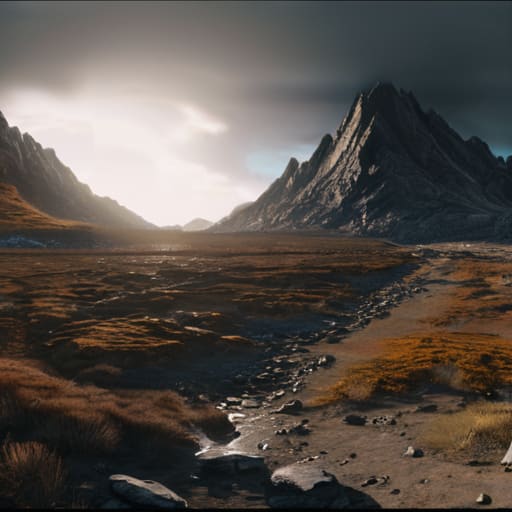
If you look at an SDR screen, everything is essentially fighting for the same limited amount of light. It’s a compromise. You get a decent image, but the shadows are just muddy grey blobs and the bright spots feel like they’re hitting a ceiling. When I run an hdr vs sdr comparison on my test bench, the difference isn’t just “prettier”—it’s about the math. SDR is capped at a much lower luminance, whereas HDR pushes the peak brightness nits high enough to actually make a sun flare or an explosion feel like it’s hitting your retinas.
The real trick, though, is the contrast ratio in gaming. In SDR, if you want a bright light, you often lose all the detail in the dark areas around it. With a proper HDR setup—especially if you have decent local dimming zones—the monitor can actually turn off pixels or dim specific areas to keep the blacks deep while the highlights pop. It’s the difference between a game looking like a flat painting and a world that actually has physical depth. If your monitor can’t hit those brightness targets, though, don’t bother; you’re just looking at a washed-out mess.
Don't Get Scammed: 5 Ways to Actually Use HDR
- Stop buying “HDR Ready” monitors. That’s usually just marketing code for a display that can barely hit 300 nits of peak brightness. If you can’t see the difference between a dark room and a pitch-black room, you aren’t doing HDR; you’re just looking at a slightly less grey screen.
- Check your nit counts before you click buy. For a real, “wow” HDR experience where sunlight actually blinds you and shadows actually hide things, you want a display hitting at least 600 to 1,000 nits. Anything lower is just SDR with a fancy sticker on the box.
- Local Dimming is the real MVP. If your monitor uses a single backlight for the whole screen (Edge-lit), your HDR will look like a blurry, glowing mess. You want Full Array Local Dimming (FALD) or, if you have the budget, an OLED, so the blacks actually stay black instead of looking like a cloudy grey.
- Calibrate your settings once, then leave them. Windows has an HDR Calibration tool now, and most modern games have their own sliders. Don’t just toggle it on and walk away; if the colors look like a neon fever dream, your brightness levels are fighting your display’s actual capabilities.
- Watch your cable choice. I’ve seen too many people complain about flickering or no signal only to realize they’re using an ancient HDMI cable. If you’re pushing 4K at high refresh rates with HDR enabled, you need a certified High Speed or Ultra High Speed cable, or you’re just asking for signal dropouts.
The Bottom Line: Don't Get Burned by the Box
HDR is useless if your monitor’s peak brightness is trash; if you aren’t hitting at least 600 nits, you’re basically just paying for a slightly different shade of grey.
Don’t trust the “HDR Compatible” sticker—check the actual spec sheet for local dimming zones, because without them, you’ll just get a grey, washed-out mess in dark scenes.
If you’re building a rig, prioritize a high-quality panel over a higher refresh rate if you actually care about visual depth; 144Hz on a flat SDR screen won’t make a game look “next-gen.”
The Reality Check
“If you’re buying a monitor based on a ‘HDR Ready’ sticker without checking the peak nits or the local dimming zones, you aren’t getting better visuals—you’re just paying extra for a glorified SDR screen that makes your dark scenes look like a grey, washed-out mess.”
Denny Kowalczyk
The Bottom Line on HDR
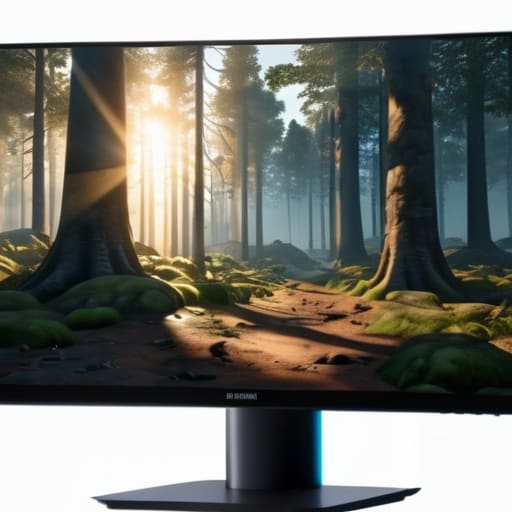
Look, the takeaway here isn’t that every game is a visual masterpiece now; it’s that HDR only works if your hardware actually keeps up. You can have the most impressive spec sheet in the world, but if you’re running a budget monitor with a peak brightness of 300 nits, you’re basically just looking at slightly better SDR. To actually see the difference—the way light bleeds through a window or the way shadows don’t just turn into a flat, muddy black—you need a display that can actually handle the dynamic range. Don’t let manufacturers trick you into thinking a “HDR Ready” sticker means you’re getting a cinematic experience; check the peak brightness and local dimming zones before you drop your hard-earned cash.
At the end of the day, I don’t care about the marketing fluff or the buzzwords they throw at you during keynote presentations. I care about whether the tech actually makes the game feel more immersive when I’m sitting in my chair at 2 AM. When it’s done right, HDR stops being a setting you toggle on and off and becomes something you forget is even there because the image just feels real. Stop chasing the hype and start chasing the actual specs. If the numbers make sense for your setup, pull the trigger; if not, keep your money in your pocket and stick to what works.
Frequently Asked Questions
Do I actually need a high-end monitor to see the difference, or can I get away with a budget HDR display?
Don’t fall for the “HDR Ready” sticker on a $150 monitor. That’s just marketing fluff to move cheap panels. To actually see the difference, you need local dimming zones and real peak brightness—usually 600 nits or higher. If you try to run HDR on a budget display, you’ll just get a gray, washed-out mess that looks worse than standard SDR. Save your money; unless it’s an OLED or a high-end Mini-LED, skip the “HDR” lie.
Why does my HDR look washed out and grey even when I turn it on in the game settings?
It’s usually because your hardware is lying to you. If you’re using a cheap IPS monitor with a 400-nit peak brightness, turning on HDR just stretches a narrow signal across a range it can’t actually hit, resulting in that grey, foggy mess. You need true local dimming or an OLED to make it work. Check your Windows HDR calibration tool; if your monitor can’t hit the advertised nits, just turn it off and save your eyes.
Is HDR worth the extra money if I'm mostly playing competitive esports titles where frame rate is king?
If you’re grinding Valorant or CS2, HDR is a waste of your cash. In competitive play, you need clarity and motion fluidity, not a sunset that looks “cinematic.” HDR often adds input latency if your monitor’s processing can’t keep up, and the increased brightness can actually make it harder to spot dark corners or subtle movement. Stick to a high-refresh SDR panel. Save that extra money for a better mouse or more frames.
