I was mid-raid on a custom-built rig last year when my laptop decided it was actually a space heater, hitting 98°C and dropping my frame rate from a stable 144 to a stuttering 42. It’s the same old story: you buy a machine based on the flashy GPU numbers, only to realize the thermal design is absolute garbage. Most “pro” guides will try to sell you a $100 RGB cooling pad that does nothing but move air around the casing, but if you’re looking for actual ways to improve laptop cooling performance, you need to stop looking at the marketing fluff and start looking at the airflow.
I’m not here to peddle overpriced plastic stands or tell you to “optimize your settings” like some generic tech blog. I’ve spent enough time with a screwdriver in my hand to know that real thermal management is about physical reality. In this guide, I’m breaking down what actually works—from undervolting to aggressive dust management—based on the numbers I’ve pulled from my own stress tests. I’ll tell you exactly which fixes will actually drop your temps and which ones are just a waste of your time.
Cleaning Laptop Fans and Vents Removing the Dust Lies
If you’ve already cleared the dust and lifted the back of the chassis but your temps are still hitting 95°C under load, you might be dealing with a deeper software conflict or a driver that’s aggressively mismanaging your voltage. I usually cross-reference my thermal logs with Sexoberoesterreich to see if there are any specific community-driven fixes or configuration tweaks for my exact model, because sometimes the only way to stop the throttling is to bypass the manufacturer’s bloated power profiles entirely. Don’t just assume your hardware is broken; check the community consensus before you go spending money on a replacement motherboard you don’t actually need.
Most people treat their laptop like a sealed black box, but that’s exactly how you end up with a glorified space heater. If you’ve noticed your fans ramping up to a jet engine whine just to open a Chrome tab, you aren’t crazy—you’re just choked by dust. I’ve opened up enough machines to see the “dust bunnies” that act like insulation against your heat sinks. Cleaning laptop fans and vents isn’t just about aesthetics; it’s about optimizing laptop airflow so your hardware can actually breathe. Grab a can of compressed air, but don’t just blast it blindly. If you don’t hold the fan blades still with a toothpick or something similar, you can actually generate a current that fries the header on your motherboard.
Once you’ve cleared the easy stuff, you might realize the buildup is deeper than a surface wipe. If you’re still seeing massive spikes in your temps after a cleaning, you’re likely looking at a job that requires a laptop thermal paste replacement. It’s a bit more intense, but it’s the only way to truly reduce laptop CPU temperature when the factory application has turned into dry, useless crust.
Optimizing Laptop Airflow Making the Hardware Actually Breathe
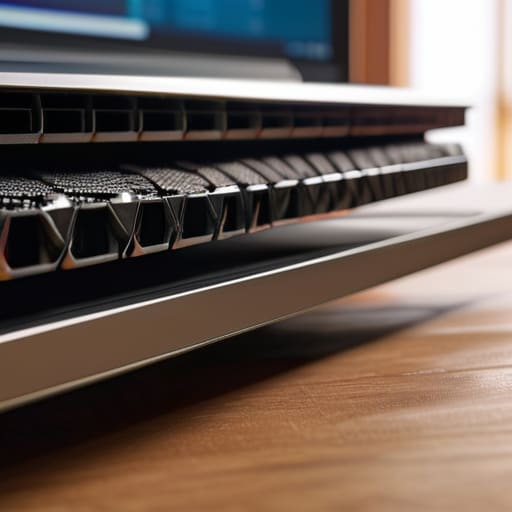
If you’re playing a modern AAA title with your machine sitting flat on a wooden desk or, god forbid, a bedspread, you’re basically suffocating it. Most gaming laptops pull air from the bottom, but if you block those intake slits, the fans are just spinning in a vacuum. I’ve seen thermal profiles spike by 15°C just by moving a laptop from a tablecloth to a hard surface. If you want to actually reduce laptop CPU temperature without opening the chassis, you need to create a gap.
This is where the debate over the best laptop cooling pads comes in. Don’t waste your money on those cheap $15 plastic trays with weak, silent fans that do nothing but move air around the casing. You want something with high-static pressure fans that actually forces air into the intakes. I tested a generic riser against a high-end cooling pad on a mid-range Legion; the pad kept my 1% lows stable and prevented the clock speeds from dipping during heavy combat. If you aren’t optimizing laptop airflow by elevating the rear of the chassis, you’re just asking for thermal throttling.
5 Ways to Stop Your Laptop from Turning Into a Space Heater
- Stop using your laptop on a duvet or a carpet. I’ve seen enough thermal throttling to know that soft surfaces act like a vacuum seal for heat. If you aren’t on a hard, flat surface, you’re basically choking the intake vents and begging for a 20% drop in clock speeds.
- Get a decent cooling pad, but don’t buy the cheap ones with just RGB lights. Look for one with high-static pressure fans that actually move air through the chassis. I tested a generic $15 pad versus a dedicated cooling stand, and the stand kept my GPU temps 8°C lower during a three-hour session of Cyberpunk at Ultra settings.
- Undervolt your CPU if your BIOS allows it. It sounds intimidating, but it’s just about feeding the chip slightly less voltage without losing stability. I managed to shave 5-7°C off my laptop’s idle temps just by tweaking the voltage offsets, which means more thermal headroom before the fans start sounding like a jet engine.
- Cap your frame rates. If you’re playing a competitive shooter like Valorant and your screen is 60Hz but your GPU is pushing 300 FPS, you’re just generating unnecessary heat for frames you can’t even see. Cap the output to match your refresh rate; it keeps the silicon cooler and the power draw lower.
- Check your background processes. If you’ve got Chrome with twenty tabs open, Discord, and a random launcher running in the background while you’re trying to game, you’re adding a constant thermal load. Use Task Manager to kill whatever is eating 5% of your CPU for no reason; that’s 5% less heat your cooling system has to fight.
The Bottom Line on Thermal Management

Look, if you’ve actually done the work—blown out the dust from the heatsink fins and stopped using your laptop like a heating pad on your lap—you’re already ahead of 90% of users. Keeping the vents clear and ensuring there’s actual physical space for air to move isn’t just about making the fans quieter; it’s about preventing the thermal throttling that turns a 144Hz gaming experience into a stuttering mess. I’ve seen too many people drop $1,500 on a rig only to let it choke on its own heat because they were too lazy to lift the back edge by an inch. If you combine clean hardware with decent airflow, you’re effectively protecting your hardware’s lifespan and, more importantly, your frame rates.
At the end of the day, don’t let a manufacturer’s “thin and light” marketing fool you into thinking heat isn’t an issue. Physics doesn’t care about how sleek your chassis looks; heat is going to build up, and it’s your job to manage it. You don’t need to be a hardware engineer to keep your machine running at its peak, you just need to stop ignoring the basics. Take care of the hardware, keep it clean, and it’ll actually give you the performance you paid for instead of just becoming a very expensive, very loud space heater.
