I spent three years watching people throw money at higher VRAM capacities because they thought their games were “unoptimized,” when half the time, the engine was just choking on a million tiny, individual files. Most tech blogs will give you a textbook definition of what is a texture atlas that sounds like it was pulled straight from a Wikipedia entry written by a robot, leaving you more confused about your frame timings than when you started. They’ll talk about “draw calls” and “memory overhead” without ever explaining why your GPU is sweating through its thermal paste just to render a single room.
I’m not here to rewrite a manual or sell you on some overpriced hardware upgrade you don’t actually need. I’m going to break down exactly how these “sheets” work by treating them like the efficiency hack they actually are. I’ll show you how grouping textures stops your hardware from wasting cycles hunting for loose files, and I’ll tell you exactly how this impacts your actual performance. No fluff, no marketing jargon—just the straight numbers on why this matters for your build and your sanity.
Table of Contents
Reducing Draw Calls in Game Engines Without Breaking the Gpu

The real reason we care about this isn’t just about saving disk space; it’s about the CPU-to-GPU handshake. Every time your engine wants to draw something new, it sends a command called a draw call. If you have fifty different objects using fifty different tiny textures, your CPU is essentially screaming orders at your GPU fifty times per second. That’s how you end up with a massive bottleneck where your expensive card is sitting idle because the processor is too busy managing the paperwork. By batching geometry with shared textures, you tell the engine to grab one giant sheet and draw everything in a single, efficient sweep.
It’s not a “set it and forget it” process, though. If you just shove everything into a single square, you’ll run into texture bleeding, where the edge of a brick wall starts leaking into the color of a nearby wooden crate because the GPU is sampling the wrong pixel. You have to be smart about your atlas packing algorithms and leave enough padding between your assets to prevent that mess. If you don’t, you’re just trading one performance headache for a visual one.
Atlas Packing Algorithms Sorting the Chaos for Better Performance

You can’t just throw a bunch of loose PNGs into a single file and expect the engine to handle it like a pro. If you do, you end up with massive gaps of wasted space or, worse, textures overlapping in ways that make your assets look like a glitchy mess. This is where atlas packing algorithms actually earn their keep. These algorithms act like a high-speed game of Tetris, calculating exactly how to rotate and nestle different-sized sprites into a single square to maximize “fill rate.” The goal is to squeeze every possible pixel out of your allocated VRAM so you aren’t paying for empty black space.
But it isn’t just about density; it’s about preventing texture bleeding. If the algorithm packs things too tight without proper padding, the GPU might grab a sliver of a nearby sprite when it’s trying to render a specific edge, leaving you with those annoying colored lines around your models. Most modern tools use sophisticated sprite sheet optimization techniques to add “gutters” or edge padding, ensuring that even when the engine scales things up, your UV mapping stays clean. It’s a balancing act between saving space and keeping the visuals from falling apart.
5 Ways to Use Atlases Without Wrecking Your Build
- Watch your padding. If you pack textures too tight without a little bit of “bleed” or gutter space between them, you’ll see weird colored lines flickering at the edges of your models when the camera moves. It’s a rookie mistake that makes a high-end rig look like it’s running a tech demo from 2004.
- Don’t group everything into one massive 8K sheet just because you can. If you put a tiny pebble texture on the same atlas as a massive building wall, you’re wasting VRAM. Keep your atlas sizes logical so the engine isn’t loading a giant file just to render a single prop.
- Mind the mipmaps. When the engine scales down textures for distance, those pixels start to bleed together. If your atlas doesn’t have enough breathing room between assets, your distant mountains might suddenly start sporting the color of a nearby wooden crate.
- Use power-of-two dimensions. I don’t care if your texture is a weird shape; if your atlas isn’t 512, 1024, 2048, or 4096, your GPU is going to work harder than it needs to just to figure out how to read it. Stick to the math to keep those frame times consistent.
- Prioritize by frequency. Put the stuff that’s always on screen—like floor tiles or character gear—on your primary, most optimized atlases. Save the one-off, high-detail hero assets for their own dedicated textures so they don’t get lost in a crowded sheet where they can’t shine.
The TL;DR on Texture Atlasing
Stop treating every single texture like a separate errand for your GPU; grouping them into an atlas cuts down on draw calls, which is the fastest way to stop your frame rate from tanking in asset-heavy scenes.
It’s a balancing act between saving VRAM and managing “bleeding”—if your packing is sloppy or your mipmaps aren’t handled right, you’ll see weird lines of color leaking from one texture into another.
Don’t just throw everything into one giant sheet; smart atlas management means organizing by material type or frequency of use so you’re actually optimizing the engine instead of just creating a massive, unmanageable file.
The Real-World Cost of Loose Textures
“If you’re treating every single sprite or prop like its own individual file, you’re basically forcing your GPU to play a high-stakes game of scavenger hunt every time a frame renders. A texture atlas isn’t just a way to organize files; it’s how you stop your draw calls from spiking and tanking your frame rate just because the engine is too busy hunting for loose stickers instead of reading a single sheet.”
Denny Kowalczyk
The Bottom Line on Atlases
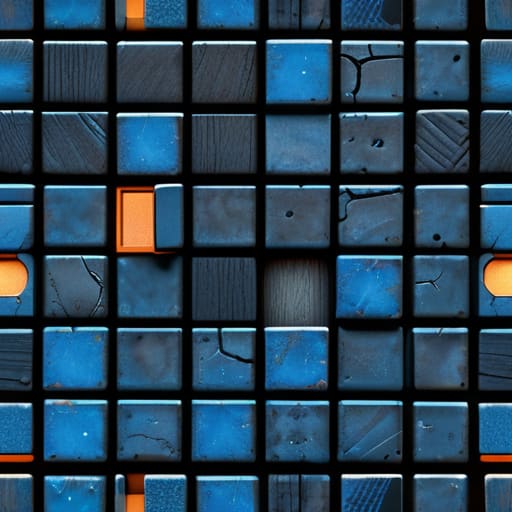
At the end of the day, texture atlases aren’t some magical fix for a potato GPU, but they are the reason your modern titles don’t turn into a slideshow the moment a complex scene loads. By grouping those individual decals into a single sheet, you’re effectively cutting down on the constant, frantic “draw calls” that choke a CPU. We’ve looked at how packing algorithms keep things organized and how this entire process saves your VRAM from wasting cycles hunting for loose files. If you’re a dev, it’s about optimization efficiency; if you’re a player, it’s the difference between a smooth 144Hz experience and a stuttery mess that makes your hardware feel like it’s fighting for its life.
Don’t let the jargon fool you into thinking hardware is the only thing that matters. A beastly RTX 4090 can’t fix a game that’s fundamentally poorly optimized, and a smart use of atlases can make a mid-range rig punch way above its weight class. Whether you’re building your own rig or trying to squeeze every last frame out of a legacy handheld, understanding how these assets work helps you see past the marketing fluff. Stop looking at just the raw teraflops and start looking at how the engine actually handles the data. That’s where the real performance lives.
Frequently Asked Questions
Will using a texture atlas actually fix my stuttering, or is it just a way to cram more low-res assets into a single map?
It’s both, but the “fix” is indirect. If your stuttering comes from CPU bottlenecks caused by massive draw call overhead, an atlas is a lifesaver. It lets the GPU pull one big sheet instead of fifty tiny ones, smoothing out those frame-time spikes. But if you’re just cramming low-res junk into a single map to save VRAM, you’re just trading stuttering for a blurry mess. Fix the calls, don’t just hide the low res.
How much VRAM am I actually saving if I pack everything into one massive 8K atlas versus multiple smaller textures?
Here’s the truth: you aren’t actually “saving” raw VRAM capacity by packing them. An 8K atlas takes up the same amount of memory as the individual files it replaced. What you’re saving is the overhead and the constant swapping. If you’re jumping between dozens of tiny textures, your GPU is working overtime just managing the file calls. One big atlas keeps everything resident and ready, which is why your 1% lows stop tanking.
Does texture bleeding—where you see bits of one sprite on the edge of another—mean I have to sacrifice resolution for performance?
Not necessarily, but you’re fighting a losing battle if you just crank the resolution. Texture bleeding usually happens because your mipmaps are getting aggressive or your UV islands are too close for comfort. Instead of throwing more pixels at it, look at your padding and gutter settings. Adding a few extra pixels of bleed/padding between sprites in the atlas solves the visual leak without eating your VRAM. It’s about smarter packing, not just higher density.
