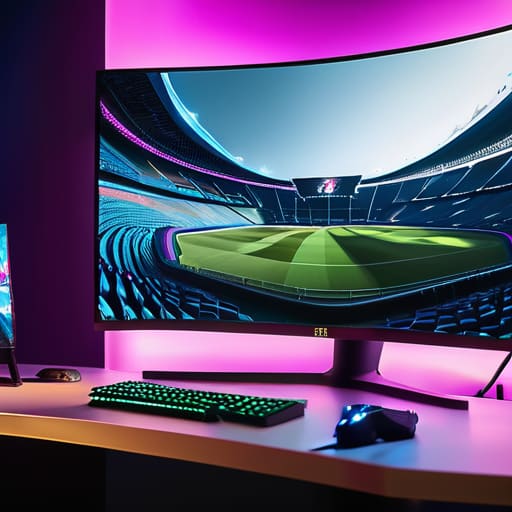
Prize pools at biggest esports tournaments.

The Biggest Esports Tournaments and What They Pay

I’m tired of seeing “esports” used as a buzzword to justify massive sponsorship deals that don’t actually translate to better gameplay. You scroll through your feed and see headlines about the biggest esports tournaments on the planet, usually accompanied by a bloated prize pool number that’s designed to make you click, but nobody tells you if the actual competition is worth the three hours of your life you’re about to spend watching it. Most of the time, you’re just watching a glorified commercial break with high-production lighting, and I think we all deserve better than meaningless hype.

I’m not here to give you a Wikipedia summary of every event on the circuit. Instead, I’ve narrowed it down to five specific tournaments that actually matter—the ones where the skill ceiling is high, the production doesn’t feel like a corporate fever dream, and the stakes actually feel real. I’ll break down why these specific events deserve your time and, more importantly, which ones are just wasting your bandwidth. If you want to know where the actual talent is hiding, this is the list you need.

Table of Contents

The International: A High-Stakes Math Problem

The International: A High-Stakes Math Problem.

If you want to see what happens when a developer decides to turn a tournament into a literal lottery, look no further than Dota 2’s premier event. I’ve spent enough time looking at patch notes to know that Valve’s approach to prize pools is basically a massive social experiment. When the crowdfunding kicks in, the numbers get absolutely ridiculous, but you have to ask if that’s actually healthy for the long-term scene or if it just creates a massive wealth gap that leaves everyone else in the dust.

League of Legends Worlds: The Production Powerhouse

League of Legends Worlds: The Production Powerhouse.

Riot Games doesn’t just run a tournament; they run a global media machine that makes most traditional sports look amateur. From the opening ceremonies to the final stage, the production value is unmatched. It’s polished, it’s expensive, and it’s designed to make you feel like you’re witnessing a historical event. If you want a broadcast that actually works without constant technical hiccups or weird audio desyncs, this is the gold standard.

CS2 Majors: The Purest Form of Competition

CS2 Majors: The Purest Form of Competition

While other games are busy adding complicated hero abilities or magic spells, Counter-Strike stays grounded in what it does best: pure, unadulterated aim and utility usage. A CS2 Major is the closest thing we have to a “no-nonsense” esport. There’s no fluff here; it’s just about who can hold an angle better and who has the better tactical discipline under a heavy spray.

Valorant Champions: The New School Disruptor

Valorant is essentially the bridge between the tactical rigidity of CS and the chaotic ability-spam of Overwatch. Champions is Riot’s attempt to claim the tactical shooter throne, and for the most part, it works. The viewership numbers are massive because the game feels fresh and fast-paced, appealing to a generation that grew up on more kinetic shooters.

EVO: The Fighting Game Soul

Every other tournament on this list relies on a massive team of developers and a global server infrastructure, but EVO is different. It’s built on the foundation of the local scene—the “grind” that happens in arcades and small community hubs. When you watch top-tier Street Fighter or Tekken players, you aren’t seeing a scripted meta; you’re seeing frame-perfect execution that has been honed through thousands of hours of solo practice.

The Bottom Line

Stop chasing the prize pool numbers; a massive jackpot doesn’t mean the actual gameplay isn’t a technical mess or a boring slog to watch.

Check the broadcast quality and stability before you commit an entire weekend to a tournament, because nothing kills the hype faster than a stuttering stream or a three-hour technical delay.

Prioritize tournaments with consistent schedules and high-level meta shifts, rather than the ones that rely on marketing hype to mask a lack of real competitive depth.

Forget the Prize Pool Hype

Stop looking at the seven-figure prize pools to decide if a tournament is “big.” A massive check doesn’t mean anything if the production is a laggy mess or the meta is so stale it feels like watching a scripted replay. I’m looking for high-stakes decision making and a broadcast that doesn’t treat the actual gameplay like a commercial break.

Denny Kowalczyk

The Bottom Line

Look, at the end of the day, you shouldn’t be watching these tournaments just because a sponsor paid for a massive billboard or a bloated prize pool that most players will never see. If you’re looking for pure mechanical skill, stick to the high-stakes CS2 majors or the League of Legends Worlds where the execution is actually flawless. If you just want to see a spectacle, sure, go for the flashy crossovers, but don’t let the marketing fool you into thinking every massive event is a masterpiece of competitive integrity. I’ve spent enough time staring at match stats and frame-perfect plays to know that size doesn’t always equal quality, and a million-dollar prize pool doesn’t fix a boring broadcast or a stale meta.

Esports is moving faster than the hardware we use to play it, and the hype cycles are only getting louder. My advice? Stop following the noise and start following the games that actually make you want to sit up in your chair. Whether it’s a grassroots tournament with a fraction of the budget or a stadium-filling behemoth, the only thing that actually matters is if the competition feels real. Don’t waste your evening on a glorified commercial break; find the tournaments that actually respect your time and the players who actually earn it.

Frequently Asked Questions

Is the massive prize pool actually going to the players, or is it just being swallowed up by org fees and taxes?

Look, I’ve seen the spreadsheets. That massive headline number is rarely what hits the player’s bank account. Between the org taking their cut, hefty taxes, and the tournament organizers recouping production costs, the “winner takes all” math gets messy fast. Most pros are actually fighting for the scraps left after the overhead is cleared. If the prize pool looks astronomical but the players are still complaining about travel stipends, you know exactly where the money went.

Do I need a high-end rig to actually enjoy watching these matches, or is the broadcast quality optimized for casual streaming?

Look, unless you’re trying to analyze frame data or spot pixel-perfect micro-movements in a high-stakes tactical shooter, you don’t need a 4090 to watch a stream. Most major broadcasts are optimized for 1080p/60fps on a standard browser. If you can run a modern AAA title at 60fps without your room turning into a sauna, you’re fine. Don’t waste money upgrading your rig just for the viewership; save that cash for the actual games.

Are these tournaments worth the time investment, or is the schedule so bloated that the actual matches get lost in the filler?

Look, most of these schedules are a mess. You’ve got three hours of “pre-show” hype, sponsor shoutouts, and analyst desks just to get to a single Best-of-Three. It’s bloated. If you’re watching the majors, the density of high-level play justifies the grind. But for the mid-tier circuits? Most of it is filler. Don’t burn your evening on a twelve-hour broadcast if the actual matches are just glorified scrims. Check the match times first.

Guide on how to check GPU temperature.

How to Check Gpu Temperature and What Is Too Hot

I remember sitting in my bedroom at sixteen, staring at a custom build that was supposed to crush Cyberpunk 2077, only to watch it throttle down to a stuttering 24 FPS because the fans were basically just spinning in a vacuum. I spent three hours reading forum threads that were half-written by bots and half by people who thought “it feels hot” was a valid metric. Most of the advice you’ll find online about how to check gpu temperature is either way too technical for a quick fix or just tells you to download some bloated software that eats 5% of your CPU cycles for no reason. If you’re just looking for a way to tell if your card is actually melting your motherboard or just doing its job, you don’t need a degree in thermal dynamics.

I’m not going to waste your time with a thousand-word lecture on thermodynamics or tell you to buy a $50 external sensor. Instead, I’m going to show you the exact, lightweight tools I use to monitor my own rigs and what numbers you should actually care about. We’re going to look at real-world thermal loads, distinguish between “normal” and “danger zone,” and make sure you aren’t throwing money away on cooling solutions you don’t actually need.

Table of Contents

The Best Gpu Monitoring Tools 2024 for Real Data

The Best Gpu Monitoring Tools 2024 for Real Data

If you want the truth, stop relying on the built-in overlays in your game launcher; they’re usually too shallow. For the best gpu monitoring tools 2024 has to offer, you need to be looking at MSI Afterburner. It’s the industry standard for a reason. I use it to track everything from clock speeds to gpu fan speed control while I’m actually mid-session. It lets you overlay a readout so you can see if your temps are spiking during a heavy firefight or if your card is just idling high for no reason.

If you’re looking for something a bit more lightweight that doesn’t feel like it’s trying to sell you a new motherboard, HWInfo64 is the play. It’s dense, sure, but it gives you the granular data that marketing departments love to hide. I use it when I’m trying to figure out the exact difference in nvidia vs amd gpu thermals on a specific build, or when I’m troubleshooting why a rig is hitting its thermal limit. It tells you the “hotspot” temperature, which is often way higher than the average reading you see in basic software.

Nvidia vs Amd Gpu Thermals What the Specs Hide

Nvidia vs Amd Gpu Thermals What the Specs Hide

If you’re looking at a spec sheet and thinking one brand is inherently “cooler” than the other, you’re falling for the marketing. When comparing nvidia vs amd gpu thermals, the reality is that the silicon matters less than the shroud and the heatsink design. I’ve seen high-end Nvidia cards with terrible thermal paste application that hit 85°C under load, while a mid-range AMD card with a massive triple-fan cooler stays chill at 60°C. Don’t let the “reference design” talk fool you; the actual graphics card temperature ranges you see in your monitoring tool are determined by how much money the manufacturer actually spent on the cooling solution.

The real difference shows up when you try to mess with your settings. Nvidia cards often have more aggressive fan curves out of the box, which keeps temps low but makes your PC sound like a jet engine. AMD cards tend to run a bit warmer but often allow for more flexible gpu fan speed control through their software. If you start seeing stuttering or sudden drops in clock speeds, those are classic overheating symptoms pc users ignore until their hardware throttles. Don’t wait for the crash; watch the numbers.

Stop Guessing and Start Measuring: 5 Ways to Actually Know What's Going On

  • Don’t just look at the “Core Temperature.” If you’re running a high-end RTX card, you need to check the Hot Spot and Memory Junction temps. A core temp of 70°C looks fine on paper, but if your memory junction is hitting 105°C, you’re basically slow-cooking your VRAM and killing the card’s lifespan.
  • Stress test with actual gameplay, not just synthetic benchmarks. Running FurMark might give you a scary number, but it doesn’t reflect how your GPU behaves during a heavy raid in Cyberpunk 2077 or Warzone. Monitor your temps while you’re actually playing the game you care about to see the real-world thermal soak.
  • Watch for the “Thermal Throttling” cliff. If you see your clock speeds suddenly tanking while your temps are pegged at 85°C+, your card isn’t “running hot”—it’s actively protecting itself by slowing down. That’s when your frame rate drops from a steady 120 FPS to a stuttering 55 FPS.
  • Check your fan curves, not just your ambient room temp. If your GPU is hitting 80°C+ and the fans are barely spinning, your manufacturer set a “silent” profile that’s actually just a “thermal disaster” profile. Use MSI Afterburner to bump those RPMs up; I’d rather hear a little fan noise than pay $600 for a throttled card.
  • Keep an eye on the delta. If your GPU temp is 75°C and your CPU is sitting at 50°C, your case airflow is likely garbage. If everything in your rig is running hot at the same time, you don’t have a GPU problem; you have a “your case is a literal oven” problem.

The Bottom Line on Your Thermals

Ignore the “safe” ranges in your manual; if your card is hitting 85°C and the fans are screaming at 100%, it’s thermal throttling, regardless of what the manufacturer claims is acceptable.

Don’t rely on single-point readings; use a tool like HWInfo64 to check your Hot Spot temperature, because a low average temp means nothing if one specific sensor is hitting 105°C.

Stop chasing “silent” builds if it costs you performance; a slightly louder fan curve that keeps your clock speeds stable is better than a silent card that drops 20 FPS every time you enter a heavy combat zone.

## Stop Guessing and Start Watching

“If you’re relying on a generic ‘system health’ dashboard to tell you everything is fine, you’re basically flying blind. I don’t care what the box says it can handle; I want to see the actual delta between your idle and load temps in a real-time overlay. If your card is hitting 85°C and the software says ‘Normal,’ the software is lying to you—and so is the manufacturer.”

Denny Kowalczyk

Stop Guessing and Start Monitoring

Stop Guessing and Start Monitoring thermal trends.

Look, at the end of the day, checking your temps isn’t about being a hardware nerd; it’s about making sure you aren’t throwing money down the drain. If you’re seeing spikes above 85°C or your clock speeds are tanking while your fans are screaming, you have a problem that no amount of “optimized” settings will fix. Use the tools we talked about—get MSI Afterburner or HWInfo64 running in the background and actually watch the telemetry while you’re playing. Don’t just take a screenshot of a single number; look for the trends. If your card is hitting 90°C during a heavy load in Cyberpunk at 1440p Ultra, it doesn’t matter how many RGB fans your case has; your thermal headroom is gone, and you’re likely thermal throttling.

Hardware is expensive, and your time is even more valuable. I’ve spent too many nights troubleshooting a stuttering rig only to realize it was just a layer of dust or a poorly seated heatsink. Don’t let marketing hype convince you that your setup is “fine” just because it hasn’t crashed yet. Take control of your build, keep an eye on those actual numbers, and build for longevity. Whether you’re chasing 144Hz in esports or trying to hit a stable 60fps in a cinematic masterpiece, knowing your thermals is the difference between a machine that lasts years and one that dies in eighteen months.

Frequently Asked Questions

My GPU is hitting 85°C under load—is that actually a problem or am I just overreacting?

85°C isn’t an immediate death sentence, but you’re pushing the limit. If you’re on a reference card with a basic cooler, it’s annoying but expected. If it’s a high-end triple-fan model, something is wrong. Check your fan curves—if they’re pinned at 100% and you’re still hitting 85°C, your thermal paste is likely shot or your case has zero airflow. Don’t just guess; if it hits 90°C, your card will throttle your frames to save itself.

Does it matter if I'm checking the core temp versus the hotspot or VRAM temps?

It matters more than the marketing says it does. If you only look at the core temp, you’re getting a lie. Your core might look chill at 65°C, but if your hotspot is hitting 105°C, your card is throttling and your fans are screaming for no reason. Same with VRAM—especially on 30 and 40-series cards. If those memory modules are cooking, your performance will tank regardless of what the main sensor says. Check all three.

Can I trust the temperature readings in the game's built-in overlay, or do I need a separate tool for accuracy?

Don’t rely on the in-game overlay as your only source of truth. Most of them are fine for a quick glance, but they’re often simplified or laggy. If you’re seeing 85°C in an overlay, I want to know if that’s the core temp or the hotspot—and most overlays won’t tell you. Grab HWInfo64 or MSI Afterburner instead. You need the granular data, especially the hotspot and junction temps, to see if your card is actually struggling.

Best couch co-op games in 2026.

Couch Co-op Games That Still Exist in 2026

Look, we’ve all been there: you finally get the squad together on a Friday night, the snacks are sorted, and you realize the only thing you have to play is some broken, unoptimized mess that spends more time on loading screens than actually being fun. Most “multiplayer” recommendations these days are just recycled press releases for games that were never meant to be played on a single sofa. I’m tired of seeing people waste their limited free time on titles that turn a fun hangout into a matchmaking nightmare. I’ve spent way too many hours troubleshooting local connectivity issues and fighting against terrible input lag just to find the best couch co-op games that actually respect your time and your hardware.

I’m not here to give you a fluff piece. I’ve sifted through the absolute garbage to bring you a massive, definitive breakdown of 2026 titles that actually deliver when you’re sitting shoulder-to-shoulder. Whether you need a high-intensity competitive fix or something low-stakes to play while you’re actually talking, this list covers it all. I’m going to show you exactly what works, what’s just overpriced filler, and which games will actually make the night worth the controller battery drain.

Table of Contents

The Bottom Line on Local Multiplayer

The Bottom Line on Local Multiplayer.

Don’t let “co-op” marketing fool you; if the game requires a stable internet connection or a specific headset to function, it isn’t true couch co-op and it’ll ruin your night.

Hardware matters—I’ve seen too many “great” local titles turn into a slideshow because they aren’t optimized for split-screen, so always check the performance impact before you buy.

Value isn’t about the number of hours; it’s about whether the mechanics actually support two players or if you’re just playing a single-player game with a second controller glued to your hand.

The Couch Co-op Litmus Test

The Couch Co-op Litmus Test photograph.

I don’t care how many “cooperative modes” a marketing team slaps on a box; if the game doesn’t account for the person sitting two feet away from you—whether that’s through shared screen space or actual meaningful interaction—it’s just a single-player game with a second controller acting as a very expensive paperweight.

Denny Kowalczyk

The Final Verdict

The Final Verdict on couch co-op games.

Look, we’ve gone through a massive list, and if you’ve actually read this far, you know I’m not here to sell you on every mediocre title that hits Steam. We’ve covered everything from high-intensity shooters that demand frame-perfect inputs to those low-stakes indie gems that won’t make you want to throw your controller across the room when your friend misses a jump. The reality is that a good couch co-op game isn’t just about having a split-screen mode; it’s about whether the mechanics actually encourage you to work together or if you’re just sitting in the same room playing two different games. Don’t fall for the marketing fluff—if the local multiplayer feels like an afterthought, it’s a hard pass from me.

At the end of the day, your hardware is just a way to get people in the same room. Whether you’re running a high-end rig or a dusty old console you found in a closet, the goal is to stop staring at your individual screens and start actually interacting with the person next to you. Gaming is better when it isn’t a solitary grind, and a solid co-op session is worth more than any single-player masterpiece when you’re looking to actually connect. So, pick something from the list, grab a second controller, and stop wasting time on the broken stuff.

Frequently Asked Questions

Do I actually need a second controller, or can I play these with a keyboard and mouse setup?

Look, if you’re playing a platformer or a twin-stick shooter, don’t even bother with the keyboard; you’ll just fight the controls and lose. Most of these titles are built for analog sticks. However, if it’s a tactical RPG or something with heavy menu management, a mouse is actually faster. But for 90% of this list? Get the second controller. Trying to split a single keyboard with a friend is a recipe for a broken friendship.

Which of these games are going to murder my CPU if I try to run them on an older laptop?

If you’re on an older laptop, stay far away from anything with heavy physics or massive NPC crowds. Titles like Cities: Skylines or high-fidelity shooters will absolutely murder your CPU; you’ll see your frame rates tank from 60 down to a stuttery 15 the second things get busy. Stick to 2D pixel art or well-optimized indies. If the game relies on complex simulation or heavy AI calculations, your processor is going to scream.

Are these actually good for two people, or are they just single-player games with a "join in" button tacked on?

Look, I’ve spent enough time staring at “co-op” titles that are really just single-player games with a second controller plugged in for decoration. If you’re just standing there watching your friend play while you hold a button to occasionally revive them, it’s garbage. I’ve filtered this list specifically for games where the mechanics actually require two brains. If the game doesn’t break when you add a second player, it stays on the list.

Understanding how game physics work.

How Game Physics Work and Why They Break

I remember sitting in my dorm at 2 AM, staring at a physics-heavy indie title that promised “unprecedented realism,” only to watch a crate clip through a stone floor like it was made of ghost matter. It’s the same lie you see in every cinematic trailer: developers use big words to hide the fact that their collision detection is basically a prayer and a handful of loose code. Most people think understanding how game physics work means memorizing textbook formulas for torque or fluid dynamics, but that’s just marketing fluff to make a tech demo look like a revolution. In reality, it’s about whether the math actually holds up when you’re pushing a character through a crowded environment or if the engine just gives up and lets everything jitter into oblivion.

I’m not here to give you a lecture on calculus or a thousand-word dissertation on Newtonian mechanics. I’m going to strip away the hype and show you the actual logic behind the movement, the collisions, and the broken math that makes a game feel heavy or weightless. We’re going to look at what’s actually happening under the hood so you can spot the difference between a sophisticated engine and a glorified spreadsheet wasting your CPU cycles.

Table of Contents

Rigid Body Dynamics vs the Real World

Rigid Body Dynamics vs the Real World

Most games treat objects like they’re made of indestructible, unyielding steel. That’s the core of rigid body dynamics in games: the engine assumes a crate or a barrel won’t deform, squish, or dent when it hits a wall. It’s a massive shortcut. Instead of calculating how every single molecule of a wooden box reacts to a collision, the engine just tracks a single mathematical point for its position and a set of vectors for its rotation. It’s efficient, which is the only reason we aren’t playing at 4 FPS, but it’s also why everything feels a bit… clinical.

The real headache starts when you try to bridge that gap between math and feeling. To make a physics object move, the engine uses integration methods for physics simulation to predict where that object will be in the next millisecond based on its current velocity and gravity. If the math is too simple, your physics objects start jittering or flying through floors like ghosts. If it’s too complex, your CPU starts screaming. I’ve seen builds that look like beasts on paper absolutely choke because a dev decided to crank the physics solver way too high for a “realistic” debris effect that nobody actually asked for.

Integration Methods Why Your Simulation Jitters

Integration Methods Why Your Simulation Jitters.

Ever played a game where a crate starts vibrating violently against a wall until it suddenly shoots across the room like a railgun slug? That’s not a feature; that’s your engine failing at math. This usually comes down to integration methods for physics simulation. Computers can’t actually “solve” continuous motion; they just take tiny, discrete snapshots of time to guess where an object should be next. If the time step is too large or the math is too cheap—like using basic Euler integration—the error accumulates. Instead of a smooth slide, you get a jittery mess because the math is constantly overshooting the actual position.

To keep things stable without melting your CPU, developers use more sophisticated real-time physics simulation techniques like Verlet integration. It’s less about calculating velocity directly and more about looking at where an object was versus where it is now. It’s way more stable for things like cloth or rope, but it’s still a balancing act. If the engine tries to be too precise, your frame rate tanks; if it’s too lazy, your physics objects start ghosting through solid geometry. It’s a constant trade-off between looking real and actually being playable.

Stop Getting Fooled by the Tech: 5 Ways to Tell if a Physics Engine is Actually Working

  • Watch the collision boxes, not the models. If a character’s hand passes through a wall or a grenade clips through the floor, the engine is struggling with collision detection. High-poly models look great, but if the underlying math is lazy, you’re just playing a very pretty, very broken simulation.
  • Look for “jitter” in resting objects. If a crate sitting on a flat floor is vibrating or slowly sliding across the room, the integration method is failing to settle the math. That’s usually a sign the developer prioritized high frame rates over stable physics calculations, and it’ll drive you insane during long sessions.
  • Check the frame rate vs. the physics step. If the game feels “floaty” or objects fly off into space when the FPS drops, the physics engine is likely tied directly to the render loop. A well-optimized game runs physics on a fixed timestep so the gravity doesn’t suddenly change just because your GPU decided to take a breather.
  • Test the “weight” of interactions. Marketing will call it “hyper-realistic,” but if a heavy boulder and a wooden crate react to a collision with the same velocity, it’s just a glorified script. Real physics engines use mass and friction values that actually change how much force is needed to move an object.
  • Don’t fall for “Destructible Environments” unless they have substance. If a wall breaks into twenty pre-animated chunks, it’s not physics; it’s an animation trigger. Real physics-based destruction should mean every fragment has its own trajectory and reacts to the specific angle and force of the impact.

The Bottom Line: Physics, Performance, and Why It Matters

Physics engines aren’t magic; they’re just math trying to guess what happens next. If the integration method is cheap, you get jittery objects and clipping; if it’s high-end, you get stability at the cost of your CPU cycles.

Don’t mistake “realistic” for “playable.” A game can have perfect rigid body dynamics, but if the physics calculations are eating 30% of your frame time, you’re better off with a simpler system that keeps your FPS steady.

When you’re looking at a spec sheet or a dev blog, look past the buzzwords. A “revolutionary physics engine” is meaningless unless it actually translates to weight, friction, and predictable movement that doesn’t break the moment a grenade goes off.

## The Math vs. The Feel

“At the end of the day, a physics engine isn’t trying to recreate reality; it’s just trying to cheat it well enough that you don’t notice the math breaking every time you clip a corner at sixty frames per second.”

Denny Kowalczyk

The Verdict: Math vs. Reality

The Verdict: Math vs. Reality physics glitch.

Look, at the end of the day, game physics is just a massive, ongoing compromise. We’ve gone from simple rigid bodies that act like indestructible bricks to complex integration methods that try—and often fail—to keep things from jittering into the stratosphere. You’ve seen it: a car hits a wall at 100mph and instead of crumpling, it just glitches through the geometry because the math couldn’t keep up with the frame rate. Whether it’s a developer choosing a stable Euler integration to save CPU cycles or a high-end engine pushing sub-stepping to make every pebble feel heavy, it’s all about managing the gap between a perfect mathematical simulation and the limited hardware sitting under your desk.

Don’t let the technical jargon or the marketing hype about “next-gen realism” distract you from what actually matters when you’re playing. A physics engine shouldn’t just be a list of complex algorithms; it should be the thing that makes a grenade toss feel satisfying or a mountain slide feel terrifying. When the math is right, you stop seeing the code and start seeing the world. My advice? Stop worrying about the spec sheets and start looking for the games where the interaction feels intentional. If the physics feel like a chore or a glitchy mess, no amount of ray-tracing is going to save that experience.

Frequently Asked Questions

If the math is just an approximation, why do objects sometimes clip through floors or explode when they touch each other?

It’s called the “tunneling” problem. Because the engine calculates movement in discrete steps rather than a continuous stream, a fast-moving object can literally be on one side of a floor in frame A and already past it in frame B. The math never “saw” the collision happen. When objects overlap, the solver panics, tries to shove them apart with massive force in a single frame, and—boom—you get that physics explosion.

Does a better physics engine actually require more hardware, or is it just a matter of how well the devs optimized the code?

It’s both, but usually, it’s a coding problem. A high-end CPU can brute-force a messy simulation, but if the devs haven’t optimized their collision detection or are running too many sub-steps, you’re just burning cycles for nothing. I’ve seen unoptimized indie titles choke a Ryzen 9, while AAA titles use clever spatial partitioning to run complex destruction on mid-range hardware. Better engines need more raw math, sure, but bad optimization turns that math into a slideshow.

What's the difference between "scripted" physics, like a cinematic explosion, and actual real-time simulation that I can mess with?

Scripted physics is basically a movie on rails. The devs decide exactly where that barrel flies and how much debris hits your face to make a “cool” shot. It looks great, but it’s a lie; you can’t change the outcome. Real-time simulation is the chaos. That’s the engine calculating forces every frame so if you shoot the barrel from a weird angle, it actually reacts to your specific input. One’s a directed scene; the other’s a math-driven sandbox.

Guide on how to fix game crashes.

How to Track Down Why a Game Keeps Crashing

I spent three years building rigs for people who thought the solution to every stutter or desktop-to-desktop error was “just buy a more expensive GPU.” It’s a lie. I’ve seen $2,000 machines choke on a title because of a single corrupted DirectX shader or a bloated background process, and frankly, it drives me insane. Most of the “solutions” you find online are just people gatekeeping or pushing you toward hardware upgrades you don’t actually need. If you’re searching for how to fix game crashes, you don’t need a new rig; you probably just need to stop following the generic, useless advice that fills up search results.

I’m not here to give you a three-thousand-word lecture on the history of operating systems or tell you to “reinstall Windows” as a first resort. I’ve taken enough hardware apart to know when the software is lying to you, and I’ve sat through enough crashes to know which fixes actually hold up under pressure. I’m going to give you the exact, no-nonsense steps that actually work—from driver rollbacks to memory leak hunting—so you can stop staring at your desktop and get back to playing.

Table of Contents

Check System Requirements Before You Blame the Code

Check System Requirements Before You Blame the Code

Before you start tearing your hair out thinking the developers released a broken mess, take a second to check system requirements against what’s actually inside your rig. I’ve seen way too many people trying to run a modern AAA title on a laptop that was optimized for spreadsheets and Netflix. If your GPU has 4GB of VRAM and the game is demanding 8GB just to load the textures, you aren’t going to get a stable experience, no matter how many patches they drop. It’s not a bug; it’s just math.

Next, stop assuming your hardware is fine just because it worked on your last game. If you haven’t bothered to update graphics card drivers in three months, that’s your first point of failure. New titles often need specific driver optimizations to handle their rendering pipelines, and running on legacy software is a recipe for desktop crashes. Also, keep an eye out for overheating symptoms in gaming, like your fans ramping up to jet-engine levels right before the screen freezes. If your thermals are spiking, your hardware is likely throttling itself into submission to prevent permanent damage.

Verify Game File Integrity to Cut the Fluff

Verify Game File Integrity to Cut the Fluff

Before you go downloading a fifty-gigabyte patch or nuking your entire OS, try something that actually takes ten seconds. Most of the time, a crash isn’t some deep-seated architectural flaw in the game engine; it’s just a single corrupted texture or a missing sound file that’s tripping up the execution. If you’re on Steam or Epic, you don’t need a degree to fix this. Just right-click the game, hit properties, and select the option to verify game file integrity. It forces the launcher to cross-reference your local files against the master version on the server. If it finds a mismatch, it downloads only the broken bits.

I’ve seen too many people jump straight to reinstalling DirectX and Visual C++ redistributables when the problem was literally just a single corrupted .dll file that a quick verification would have caught. It’s the digital equivalent of checking if your HDMI cable is actually plugged in before you start yelling at your monitor. If the integrity check comes back clean and you’re still hitting the desktop, then we can start looking at the more annoying stuff, like driver conflicts or actual hardware instability.

5 More Ways to Stop Your PC from Throwing a Tantrum

  • Update your GPU drivers, but don’t just click ‘install’ on whatever the manufacturer pushes. If a new driver version is causing more crashes than it fixes, roll back to the last stable version. I’ve seen enough “game-ready” drivers brick performance in 1440p just to satisfy a marketing cycle.
  • Watch your temperatures like a hawk. If your CPU or GPU is hitting 90°C+ right before the desktop, you don’t have a software problem; you have a thermal throttling problem. Clean your dust filters or repaste that chip before you start reinstalling Windows for no reason.
  • Disable all non-essential overlays. Discord, Steam, NVIDIA ShadowPlay, and even those useless RGB control suites all fight for the same system resources. I’ve killed more crashes by just turning off the Discord overlay than I have by any other method.
  • Check your RAM stability. If you’re running an XMP/DOCP profile that’s slightly too aggressive for your specific silicon, your game won’t just lag—it’ll hard crash to desktop. Run a MemTest if you’re seeing weird memory errors in your crash logs.
  • Scan for conflicting background processes. Anti-virus software is notorious for treating game executables like malware during heavy loading sequences. Add your game folder to the exclusion list so your security software stops trying to “inspect” every single asset being loaded into VRAM.

The TL;DR on Stopping Crashes

Don’t assume the game is broken just because it’s crashing; verify your hardware actually meets the minimum specs and check your file integrity first to rule out easy fixes.

Keep your drivers updated, but don’t just hit ‘update’ blindly—if a new version is causing more issues than it solves, roll back to the last stable build.

If you’ve checked the files and the hardware and it still tanks, it’s likely a conflict with background software or a genuine optimization issue that no amount of troubleshooting will fix.

## Stop Chasing Ghosts in the Hardware

Most people spend three hours scouring Reddit for a ‘miracle patch’ when the real culprit is a driver that’s fighting your GPU or a single corrupted file that’s choking your CPU; stop treating every crash like a mystery and start treating it like a hardware bottleneck that needs clearing.

Denny Kowalczyk

Stop Chasing Ghosts and Start Playing

Stop Chasing Ghosts and Start Playing.

Look, if you’ve checked your hardware specs against the actual requirements and run a file integrity check, you’ve already done more than most people who just post “FIX THIS” in a Steam forum. Most crashes aren’t some deep, unsolvable mystery; they are usually just a result of a corrupted install or your GPU driver trying to run a game it doesn’t understand yet. If you’ve hit these steps and you’re still seeing a desktop crash every ten minutes, it’s time to look at your thermal paste or your power supply, because at that point, the software isn’t the problem—your rig is. Don’t let a single buggy launch or a bad driver update turn your expensive hardware into a very heavy paperweight.

At the end of the day, gaming is supposed to be the escape, not another chore on your to-do list that requires a degree in systems engineering to solve. I’ve spent enough nights staring at error logs and re-seating RAM to know that the frustration is real, but don’t let it kill your love for the hobby. Sometimes, the best fix is just waiting forty-eight hours for a patch to drop so you can stop fighting the machine and actually start playing the game. Go grab a drink, step away from the PC, and remember that no single crash is worth your sanity.

Frequently Asked Questions

My specs are way above the recommended requirements, so why am I still getting CTDs (crash to desktop)?

Look, I’ve seen this a hundred times. You’ve got a 4090 and a top-tier CPU, but the game still hits the desktop without a warning. “Recommended requirements” are a baseline, not a guarantee. If your specs are overkill, you’re likely dealing with a driver conflict, a memory leak, or an unstable overclock. Stop looking at your hardware and start looking at your software; even the best rig can’t outrun bad optimization or a corrupted shader cache.

I've already verified my files and updated my drivers, but the game still freezes every twenty minutes—what's next?

If you’ve already verified files and drivers, we’re moving past the easy stuff. If it’s freezing every twenty minutes like clockwork, you’re likely looking at a hardware stability issue or a thermal throttle. Check your temps—if your GPU is hitting 90°C right before the freeze, you need to clean your fans or repaste. If temps are fine, try undervolting or checking your RAM with MemTest86. It’s probably a hardware hiccup, not a software bug.

Is it actually worth spending money on a new GPU if my current one is causing these crashes, or is it just a software conflict?

Don’t drop $600 on a new GPU just yet. If your frames are stable until the crash, it’s likely a driver conflict or a corrupted install, not your hardware dying. I’ve seen plenty of “dying” cards that just needed a clean DDU wipe. Only start looking at the shop if you’re seeing heavy artifacting—those weird colored lines or blocks—or if your temps are hitting 90°C+ right before the desktop. Otherwise, it’s a software headache, not a hardware failure.

Explaining what is a shader in gaming.

Shaders: Why Games Stutter the First Time You Play

I spent three nights straight in my dorm room during sophomore year trying to figure out why my custom build was stuttering through every cutscene, only to realize I’d completely misunderstood how the engine was handling lighting. I was reading these bloated, academic whitepapers that made everything sound like rocket science, when the truth is much simpler. If you’re looking at a tech spec sheet and wondering what is a shader actually doing to your precious frame rate, stop looking at the marketing fluff. Most “next-gen” explanations are just a way to hide the fact that your GPU is working overtime to process math that basically just decides if a surface looks like polished chrome or a muddy puddle.

I’m not here to give you a lecture on linear algebra or repeat a press release from a hardware manufacturer. Instead, I’m going to break down how these little bits of code actually interact with your hardware. I’ll show you the difference between a well-optimized lighting pass and a bloated mess that tanks your FPS, so you can decide if those “ultra” settings are actually worth your money or just burning electricity for nothing.

Table of Contents

The Gpu Rendering Pipeline Where the Magic Actually Happens

The Gpu Rendering Pipeline Where the Magic Actually Happens

To understand how these bits of code actually move your hardware, you have to look at the GPU rendering pipeline. Think of it as an assembly line in a factory. It starts with raw geometry—just a bunch of points in 3D space—and ends with the colored pixels you see on your monitor. If you’re diving into graphics programming fundamentals, you’ll realize that the GPU isn’t just “drawing”; it’s executing a massive, parallelized math problem thousands of times per second to turn math into images.

The real heavy lifting happens during the split between vertex vs fragment shaders. First, the vertex stage handles the “where”—it calculates the position and shape of the 3D models so they don’t look like flat cardboard cutouts. Once that’s set, the fragment shader takes over to handle the “what”—the color, the lighting, and the textures. If your fragment shader is poorly optimized, you aren’t just getting a bad-looking game; you’re watching your frame times spike because your GPU is working overtime to calculate the color of a single, useless shadow.

Graphics Programming Fundamentals Beyond the Marketing Fluff

Graphics Programming Fundamentals Beyond the Marketing Fluff

If you want to move past the marketing slides, you have to look at the actual split in the workload. Most people treat the GPU like a magic box, but it’s really just a massive parallel processor running specific scripts. In the world of graphics programming fundamentals, everything boils down to the distinction between vertex vs fragment shaders. The vertex shader handles the math for where things sit in 3D space—the geometry—while the fragment (or pixel) shader decides what color those points actually are. If your vertex math is sloppy, your models look like melting wax; if your fragment code is unoptimized, your frame times will spike because you’re asking the hardware to do way too much math for a single pixel.

To actually talk to this hardware, developers use specific languages like GLSL or HLSL. These aren’t like Python or C++ where you’re building apps; these are low-level instructions designed to run thousands of times a second. When I’m testing a new build, I’m looking for how well a game utilizes these languages to push real-time rendering techniques without turning my GPU into a space heater. It’s the difference between a game that looks crisp at 144Hz and one that stutters because the shader code is a bloated mess.

How to Not Waste Your GPU Cycles on Bad Shaders

  • Stop chasing “Ultra” presets blindly. A shader might look incredible at 4K, but if it’s tanking your frame rate from 90 to 45 just to make water reflections look slightly more realistic, it’s a bad trade. Check the performance cost per visual gain before you commit.
  • Understand the difference between Vertex and Pixel shaders. If your game feels “jittery” during movement, it’s often a vertex issue; if the textures look like smeared oil paint, the pixel shader is struggling or poorly optimized. Knowing which is which helps you figure out if it’s your hardware or the dev’s code.
  • Don’t fall for the “Ray Tracing” hype without checking the math. Ray tracing is essentially just a massive, hyper-complex shader workload. If your rig can’t handle the specific math required for those light bounces, you’re better off running standard rasterization shaders and keeping your frames stable.
  • Watch out for “Shader Compilation Stutter.” This isn’t a hardware failure; it’s the CPU frantically trying to translate shader code into something your GPU understands mid-game. If a game is stuttering, check if there’s a “pre-compile shaders” option in the menu. It’ll save your sanity.
  • Learn to spot “cheap” shader work. Good developers use shaders to create depth and material variety; bad ones just slap a heavy lighting shader over a low-res texture to hide the fact that the asset looks like garbage. If the lighting looks great but the object looks flat when you move the camera, the shader is doing all the heavy lifting for a lazy model.

The Bottom Line on Shaders

The Bottom Line on Shaders explained.

Shaders aren’t just “visual effects”; they are the specific math instructions that tell your GPU how to handle light, color, and texture on every single pixel.

If a game’s shader code is poorly optimized, it doesn’t matter if you have an RTX 4090—you’ll see it in the frame time spikes and stuttering as your hardware struggles to process the junk.

Understanding shaders helps you realize why “Ultra” settings often just mean “more math for your GPU to do,” which is why I always check the actual FPS impact before recommending a setting change.

## The Real Cost of a Bad Shader

“Stop looking at the teraflops and start looking at the math; a shader isn’t just a fancy visual effect, it’s the specific set of instructions telling your GPU whether it’s rendering a masterpiece or just wasting electricity to draw a muddy, flickering mess.”

Denny Kowalczyk

The Bottom Line on Shaders

Look, if you strip away the marketing buzzwords, shaders are just the heavy-lifting math that tells your GPU how to turn raw data into something worth looking at. We’ve covered how they live inside the rendering pipeline, moving from vertex math that shapes the world to pixel shaders that decide if a surface looks like wet asphalt or rusted metal. Understanding this isn’t about passing a CS exam; it’s about knowing why your frame times spike when a dev decides to go heavy on volumetric lighting or complex transparency. When you realize that every single frame is just a massive, coordinated sprint of mathematical instructions executed in milliseconds, you stop seeing “graphics” as magic and start seeing them as calculated efficiency.

At the end of the day, the tech will keep evolving—we’ll move from ray tracing to whatever the next hardware breakthrough is—but the core principle stays the same. The best games aren’t just the ones with the highest polygon counts; they are the ones where the developers actually understood how to make the shaders work with the hardware instead of fighting against it. Don’t get blinded by the flashy benchmarks or the “ultra” preset promises. Instead, look for the games that use light and texture to actually build an atmosphere without melting your silicon. That’s where the real art happens, and that’s what makes a game actually worth your time.

Frequently Asked Questions

If I upgrade my GPU, am I actually going to see a massive jump in shader quality, or is that just marketing talk?

Look, if you’re thinking a new GPU magically rewrites the game’s code, you’re being sold a dream. A shader is part of the game’s engine; if the devs wrote shitty, unoptimized math, your RTX 4090 is just going to render that garbage faster. However, newer hardware unlocks features like hardware-accelerated ray tracing or mesh shaders that older cards simply can’t touch. You aren’t upgrading the “quality” of the shader itself, you’re just gaining the horsepower to actually run the complex ones without your frame rate tanking to 20 FPS.

What’s the real-world performance hit of turning on heavy post-processing shaders like Ray Tracing or Ambient Occlusion?

It’s not a “slight dip”—it’s a massive tax. Turning on Ray Tracing on a mid-range card is the fastest way to turn 80 FPS into a stuttery 35 FPS slideshow. Ambient Occlusion is cheaper, but even that eats your frame budget if you’re pushing 1440p. If you’re playing a competitive shooter, kill them all; the visual “depth” isn’t worth the input lag. I’d rather have consistent frames than pretty shadows I can’t actually see.

Can I use shader mods to fix a game that looks like it was rendered on a potato, or is that just asking for a crash?

It’s a gamble. If you’re talking about ReShade, you’re basically just slapping a heavy-duty filter over the existing image—it can fix muddy colors or bad lighting, but it won’t add geometry that isn’t there. If the base game is running at 25 FPS on Medium settings, adding complex post-processing shaders will just tank you into the single digits. Use them for color correction, but don’t expect a shader to turn a potato into a 4K masterpiece.

Explaining what is DLSS in gaming.

Dlss Explained: Free Frames or Blurry Mess

I remember sitting in my room three years ago, staring at a stuttering mess of pixels in a AAA title, wondering why I’d just dropped six hundred bucks on a GPU that couldn’t hold a steady 60fps. Every tech site was busy regurgitating the same marketing script, telling me that AI was going to “revolutionize my visual experience,” but nobody actually explained what is dlss in a way that mattered to my actual hardware. They all talked about it like it was some kind of digital miracle, but I just wanted to know if it was going to make my game look like a blurry watercolor painting or if it would actually save my frame timings.

I’m not here to repeat the NVIDIA press releases or sell you on the dream of infinite performance. My promise to you is simple: I’m going to break down the tech, show you where the ghosting artifacts actually show up, and tell you exactly when it’s worth toggling on and when you’re better off just lowering your shadow resolution. We’re going to look at the actual numbers and the trade-offs, so you can decide if it’s a genuine performance win or just a clever way to mask a struggling build.

Table of Contents

Ai Driven Image Reconstruction Seeing Through the Spec Sheet

Ai Driven Image Reconstruction Seeing Through the Spec Sheet

Here’s the deal: most marketing materials treat AI-driven image reconstruction like it’s some kind of digital miracle, but it’s actually just incredibly heavy math happening behind the scenes. Instead of your GPU struggling to render every single pixel at a native 4K resolution—which would make even a 4090 sweat—DLSS renders the game at a lower, more manageable resolution. It then uses the tensor cores function in gaming to fill in the gaps. It’s not just stretching a small image to fit a big screen; that’s just bad spatial upscaling that leaves everything looking like a smear of Vaseline.

DLSS uses temporal upscaling, meaning it looks at data from previous frames to figure out what the current frame should actually look like. It’s basically using historical data to predict the missing detail. This is how you get improving gaming frame rates without the image falling apart. You aren’t just getting more frames; you’re getting frames that actually look like they belong in a high-end build. Just keep in mind that while it’s smart, it’s not perfect—if there’s too much fast motion, you might still see some ghosting where the math can’t keep up with the pixels.

Tensor Cores Function in Gaming the Actual Engine Underneath

Tensor Cores Function in Gaming the Actual Engine Underneath

To understand why DLSS actually works, you have to stop looking at the GPU as just a bunch of math calculators and start looking at the Tensor Cores. While your standard CUDA cores are busy crunching the heavy geometry and lighting that make a game look pretty, the Tensor Cores are essentially dedicated specialists. Their entire tensor cores function in gaming is to handle the massive, complex matrix multiplications required for AI. Instead of the GPU trying to brute-force every single pixel at native resolution, these cores take the low-res data and the motion vectors to “guess” what the high-res version should look like.

It’s a massive distinction between temporal upscaling vs spatial upscaling. Spatial upscaling is basically just a glorified filter that looks at the current frame and tries to sharpen it, which usually looks like a muddy mess in motion. Because the Tensor Cores use temporal data—information from previous frames—they can reconstruct much sharper edges. This isn’t just some marketing gimmick; it’s the difference between a game feeling like a blurry slideshow and actually improving gaming frame rates enough to hit that sweet 144Hz target you’re actually paying for.

How to Actually Use DLSS Without Ruining Your Visuals

  • Stop defaulting to ‘Performance’ mode unless you’re running a potato; for most 1440p setups, ‘Quality’ is the sweet spot where you get the frame boost without the game looking like it’s smeared with Vaseline.
  • Check your resolution first—DLSS is a lifesaver at 4K or if you’re struggling at 1080p, but if you’re already hitting 144 FPS native, turning it on might actually make your image look worse for zero meaningful gain.
  • Don’t ignore the ‘DLAA’ option in the settings; if your rig is powerful enough to hit your target frame rate without help, DLAA uses the same tech to actually sharpen and clean up the image instead of upscaling it.
  • Always pair DLSS with Frame Generation if you have a 40-series card, but keep an eye on input latency—it makes things look buttery smooth, but it doesn’t magically make your mouse movements feel more responsive if your base framerate is already trash.
  • Watch out for “ghosting” in fast-moving scenes; if you see a weird trail following characters or UI elements, you’ve likely pushed the scaling too far, and you’ll need to dial the setting back up one notch to clear it up.

The Bottom Line: Is DLSS Worth Your Hardware Budget?

DLSS isn’t a magic fix for a weak GPU; it’s a way to trade a tiny bit of image clarity for a massive jump in frame rates, which is usually a trade worth making if you’re chasing 144Hz.

The real value is in the Tensor Cores, not the marketing buzzwords—if your card doesn’t have dedicated hardware for this, you’re stuck with traditional upscaling that looks like a blurry mess.

Don’t judge DLSS by its theoretical specs; check the actual frame time stability in your specific title, because a jump from 40 to 80 FPS is useless if the frame delivery feels jittery.

The Bottom Line on Upscaling

Look, at the end of the day, DLSS isn’t some magical way to turn a potato into a supercomputer; it’s a smart way to trade a bit of fine detail for the one thing we actually care about: a stable frame rate that doesn’t tank the second things get intense on screen.

Denny Kowalczyk

The Bottom Line: Is It Worth the Hype?

The Bottom Line: Is It Worth the Hype?

At the end of the day, DLSS isn’t some magical cheat code that turns a potato into a high-end rig, but it is the most effective tool we have for squeezing longevity out of modern GPUs. We’ve looked at how those Tensor Cores actually do the heavy lifting and how the AI reconstruction tries to patch up the holes left by lower internal resolutions. If you’re running a mid-range card and trying to hit a stable 60 FPS at 1440p in a title like Cyberpunk 2077, DLSS is often the difference between a smooth experience and a slideshow. Just remember: it’s a trade-off. You are essentially trading a tiny bit of fine detail for a massive jump in frame timing, and for most of us, that’s a deal we’ll take every single time.

Stop obsessing over whether the image is “perfect” and start looking at how the game actually feels under your hands. A game that looks 5% sharper at native resolution but stutters every time an explosion happens is a bad game to play. Use the tech, find the sweet spot in the settings menu, and stop letting the marketing departments dictate your hardware needs. The goal isn’t to have the most “accurate” pixels; the goal is to play the games you love without your hardware becoming a paperweight the moment a new engine drops. Get the settings right, enjoy the frames, and move on to the next build.

Frequently Asked Questions

If I'm playing at 1440p, will DLSS actually make the game look sharper, or am I just trading clarity for a higher frame counter?

Here’s the reality: at 1440p, you aren’t just trading clarity for frames; you’re playing a game of trade-offs. If you use DLSS ‘Quality’ mode, the reconstruction is actually decent enough that you might not notice the difference from native. But if you crank it to ‘Performance,’ you’ll see the shimmer and the soft edges. You’re getting that 90 FPS smoothness, sure, but don’t expect it to look like a 4K masterclass.

Does DLSS work on older GPUs, or am I forced to buy a 40-series card just to use the tech?

The short answer: No, you aren’t totally locked out, but there’s a massive catch. You need an RTX card to get the actual DLSS magic because those Tensor Cores I mentioned earlier are hardware-specific. If you’re sitting on a GTX 10-series or older, you’re stuck with FSR or XeSS. You don’t need a 40-series, but if you want the best version of this tech, you’re looking at an RTX 20, 30, or 40-series card.

What's the real-world difference between using DLSS Super Resolution versus just cranking up the native resolution?

Here’s the trade-off: if you run native 4K, your GPU is working overtime to render every single pixel, which kills your frame rate. With DLSS Super Resolution, you’re actually rendering at a lower base resolution—say, 1440p—and letting the AI upscale it to 4K. You get much higher FPS, but you have to decide if you can live with a tiny bit of shimmering in motion versus the raw, heavy stability of native pixels.

Explaining what is roster lock in sports.

Roster Lock: Why Teams Cannot Just Swap Players

I spent three hours last night staring at a fantasy sports dashboard, absolutely fuming because I couldn’t swap out my injured striker for a bench player who was actually playing. That’s the moment you realize you’ve hit the wall, and it’s usually because you didn’t realize what is roster lock actually meant for your specific league. Most people try to explain it like it’s some complex piece of proprietary software code, but it’s way simpler and much more annoying than that. It’s just the game’s way of saying, “You had your chance, now deal with the consequences.”

I’m not going to give you a three-thousand-word dissertation or a list of “pro tips” that are just recycled press releases. I’ve spent enough time managing teams and building PCs to know that precision matters more than fluff. I’m going to break down exactly how these locks work, why they exist, and—most importantly—how to spot the deadline before you waste your entire season on a lineup that’s legally stuck. No hype, no filler, just the mechanics you need to know.

Table of Contents

Dont Miss Your Fantasy Sports Lineup Deadlines

Dont Miss Your Fantasy Sports Lineup Deadlines

If you’ve ever spent three hours grinding for a perfect lineup only to realize your star striker is benched due to a sudden injury, you know the sting. Missing those fantasy sports lineup deadlines isn’t just a minor inconvenience; it’s a complete tactical failure. Most platforms operate on a strict “lock” timer based on the specific kickoff or tip-off time of the game. If that timer hits zero, your roster is essentially frozen in carbonite. You can’t swap a player who just went down with a hamstring strain for a bench warmer who’s actually playing.

The real killer is how these game day lineup constraints interact with real-world chaos. Coaches change their minds, players get “rested” for the playoffs, and news breaks ten minutes before the window closes. If you aren’t checking your app at least an hour before the first lock, you’re playing on hard mode for no reason. Treat your lineup management like a hardware overclock: if you don’t time it perfectly, the whole system crashes, and you’re left staring at a loss you could have easily avoided.

Navigating Complex Player Eligibility Rules guide.

Navigating Complex Player Eligibility Rules

It isn’t just about the clock, though; it’s about the fine print that turns a winning week into a complete disaster. You can have the perfect lineup ready to go, but if you haven’t accounted for specific player eligibility rules, you’re basically throwing money down a drain. I’ve seen guys lose entire fantasy matchups because they didn’t realize a player they drafted was actually sidelined or ineligible for a specific game day slot. It’s the same frustration I feel when a hardware manufacturer claims a GPU can handle 4K, but fails to mention it needs a specific driver version just to boot.

You need to treat your roster like a build list: every component has to be compatible. This means staying on top of game day lineup constraints and knowing exactly when a player moves from “active” to “questionable.” If you’re relying on last-minute news to make your moves, you’re already behind. Effective roster management strategies require you to check those injury reports and status updates well before the deadline for player substitutions hits. Don’t get caught sleeping on the details.

5 Ways to Stop Roster Lock From Ruining Your Week

  • Set notifications for 30 minutes before the lockout. I’ve seen too many people stare at a “locked” screen because they thought they had more time; don’t be that person.
  • Check the specific time zone for your league. If your platform is running on UTC and you’re living in EST, you’re going to get burned by a roster lock before you even realize the game started.
  • Build a “safety” lineup for late-game players. If you have a player in a late-night matchup, swap them out for someone with an earlier kickoff so you aren’t stuck with a zero because the lock hit while you were asleep.
  • Audit your bench during the midweek lull. Don’t wait until Sunday morning to realize your star player is out; check your roster on Wednesday so you can make moves before the lock window tightens.
  • Verify “active” vs “inactive” status before the deadline. A player being on your roster doesn’t mean they’re actually playing; check the injury reports an hour before the lock to ensure you aren’t accidentally starting a guy who’s sitting on the sidelines.

The Bottom Line on Roster Locks

The Bottom Line on Roster Locks.

Treat the deadline like a hardware failure; once the lock hits, your lineup is frozen, and no amount of complaining to the devs or the commissioner is going to fix a bad decision.

Stay ahead of the eligibility curve by checking player status early, because nothing kills a season faster than realizing your star player is actually ineligible halfway through a matchup.

Use the lock as a tool for discipline—plan your moves based on the actual schedule, not on “vibes” or what you hope will happen by Sunday night.

## The Reality of the Locked Roster

“Roster lock isn’t some complex algorithm; it’s just the game telling you that your window for making smart decisions has slammed shut. You can spend all week analyzing stats, but once that timer hits zero, you’re stuck with whatever lineup you’ve got, whether it’s a championship run or a total dumpster fire.”

Denny Kowalczyk

The Bottom Line on Roster Locks

At the end of the day, roster lock isn’t some mysterious glitch or a way for the devs to screw you over; it’s just the hard boundary between strategy and pure luck. You’ve got to respect the deadlines, keep a close eye on those eligibility rules, and make sure your bench isn’t filled with players who are effectively dead weight the second the timer hits zero. If you treat the lock like a suggestion, you’re basically handing your season over to RNG, and in any competitive setup, that’s a losing play. I’ve seen guys lose entire leagues because they thought they had five more minutes to swap a player, only to find their lineup frozen while their star striker was sitting on the bench.

Don’t let a preventable mistake turn a great season into a massive waste of your time. Treat your lineup management with the same precision you’d use when optimizing a frame rate—check your settings, verify your players, and execute before the window closes. Gaming and fantasy sports are about the wins you earn through preparation, not the ones you stumble into because you forgot to check the clock. Get your roster set, lock it in, and then actually enjoy the game.

Frequently Asked Questions

Does roster lock apply to my bench players or just the starters in my lineup?

It depends on the platform, but usually, the lock hits your entire active roster. In most standard fantasy leagues, once the deadline passes, you can’t swap anyone—starter or bench—without taking a penalty or breaking the rules. If you’re playing a format with a “flex” spot or dynamic benching, double-check your league’s specific settings. Don’t assume your bench is safe; I’ve seen too many people lose weeks because they left a questionable player on the pine.

If a player gets injured right before the lock, can I swap them out or am I stuck?

If they get sidelined right before the lock, you’re officially in the danger zone. If the roster lock has already triggered, you’re stuck with that zero-point hole in your lineup; no amount of complaining to the mods will fix it. But if you’ve got even five minutes left on the clock, move fast. Check the official injury report, swap them for a viable bench player, and lock it in before the window slams shut.

How do I check the exact lockout time for my specific league so I don't miss the window?

Don’t just guess based on the kickoff time; that’s how you end up with a zero in your starting slot. Most platforms like ESPN or Sleeper bury the specific lockout time in the “League Settings” or the “Matchup” tab. Check the countdown timer right next to the scheduled game. If it’s not there, look for the “Transaction History” or “League Rules” section. If you’re still lost, hit the league commissioner—they’re the only ones who can confirm the hard deadline.

Explaining what is a soulslike game.

What Actually Makes a Game a Soulslike

Stop letting the marketing fluff convince you that a “Soulslike” is just some niche subgenre defined by a checklist of punishing mechanics and cryptic lore. I’ve seen enough press releases claiming a game is the “next evolution of difficulty” only to realize it’s actually just wasting your evening with cheap, unearned death loops and broken hitboxes. If you’re staring at a Steam page wondering what is a soulslike beyond the hype, you aren’t looking for a lecture on ludonarrative dissonance; you’re trying to figure out if the combat actually feels earned or if you’re just paying for the privilege of getting frustrated.

I’m not here to give you a textbook definition or a three-thousand-word deep dive into academic game design. I’ve spent enough time staring at frame data and dissecting boss patterns to know the difference between a masterpiece and a cash grab. My promise is simple: I’m going to strip away the jargon and tell you exactly how these games work, what makes the loop addictive, and—most importantly—how to spot the fake difficulty before you waste your money.

Table of Contents

Punishing Death Mechanics and Real Stakes

Punishing Death Mechanics and Real Stakes.

The biggest misconception is that these games are just “hard” for the sake of being annoying. If you think a Soulslike is just about getting one-shotted by a boss you didn’t see coming, you’re missing the point. It’s about the weight of your mistakes. When you lose your accumulated currency—whether that’s Souls, Runes, or whatever the current hotness is—it’s because you failed to respect the stamina management gameplay. You swung too much, you got greedy, and now you have to walk all the way back through that same hallway of nightmares to get it back. It’s not cheap; it’s a tax on poor decision-making.

That tension is what makes the victories actually mean something. You aren’t just mashing buttons to trigger a cutscene; you are actively learning boss fight patterns through repeated, painful failure. I’ve spent more hours than I’d like to admit staring at a single boss’s animation frames just to figure out the exact window for a parry. It’s a cycle of frustration and dopamine that most mainstream titles are too scared to touch because they’re too busy holding your hand.

Mastering Stamina Management Gameplay

Mastering Stamina Management Gameplay in combat.

If you think you can just mash the attack button and win, you’re going to have a very bad time. The core of the genre isn’t just about being hard; it’s about the math behind every swing. Stamina management gameplay is what actually separates a player who understands the rhythm from someone who just dies repeatedly. Every roll, every parry, and every heavy strike drains a hidden meter that you have to respect. If you empty that bar right before a boss enters their second phase, you aren’t just “unlucky”—you’ve fundamentally failed the combat loop.

It’s less about twitch reflexes and more about resource discipline. I’ve spent way too many hours watching bosses telegraph massive, sweeping attacks, only to realize I couldn’t dodge because I’d spent my last bit of stamina on a greedy third hit. You have to learn to read boss fight patterns not just to avoid damage, but to know exactly when you have the “budget” to actually fight back. It turns every encounter into a high-stakes economy where your most valuable currency isn’t gold, but that little green bar at the bottom of your HUD.

Don't Get Wiped: 5 Ways to Survive Your First Soulslike

  • Stop button mashing. In most modern action games, you can panic-click your way through a fight; in a Soulslike, that’s just a faster way to see the “You Died” screen. Every swing has a recovery window, and if you don’t respect it, the enemy will.
  • Learn the enemy’s rhythm, not just their health bar. You aren’t fighting a stat check; you’re fighting a pattern. If you’re just staring at their HP while ignoring their wind-up animations, you’re going to get punished.
  • Treat your stamina like a currency. If you spend every single point on a heavy attack combo and leave yourself with zero, you won’t have the breath left to dodge when the boss counters. Always keep a reserve for an emergency roll.
  • Don’t ignore the environment. Soulslikes use level design as a tutorial. If a path looks suspiciously narrow or a ledge looks particularly precarious, there is a 90% chance something is waiting to drop on your head.
  • Accept that losing is part of the loop. You’re going to lose your accumulated currency, you’re going to get cornered in a room you thought was safe, and you’re going to feel like you’ve hit a wall. That’s not bad design; it’s the game’s way of making sure you actually learn the mechanics before moving on.

The Soulslike Bottom Line

It’s not about the difficulty for the sake of being mean; it’s about whether the game respects your time by making every death a lesson rather than a cheap way to waste your evening.

If the combat feels like a mindless button-masher or a series of unfair “gotcha” moments, it’s just bad design masquerading as a Soulslike.

Success in this genre comes down to pattern recognition and discipline—learning when to swing and, more importantly, when to hold back.

The Difference Between Skill and Cheap Tricks

Stop calling every game with a high difficulty setting a Soulslike; if the game isn’t teaching you through its mechanics, it’s just wasting your evening with cheap difficulty spikes that don’t actually respect your time.

Denny Kowalczyk

The Verdict: Is It For You?

The Verdict: Is It For You?

At the end of the day, a true Soulslike isn’t defined by how many times a boss can one-shot you or how much you have to manage your stamina bar. It’s about the loop: the high-stakes death, the environmental storytelling that doesn’t hold your hand, and the specific, unforgiving combat rhythm that demands you actually learn the mechanics instead of just button-mashing through a level. If a game just throws cheap difficulty spikes at you without giving you the tools to overcome them, it’s not a Soulslike—it’s just a bad game. You have to be able to see the pattern in the chaos, or you’re just wasting your evening on a frustration simulator.

If you’re looking for a game that treats your time with respect by making every single victory feel like something you actually earned, then this subgenre is your new home. It’s not for everyone, and I’ll be the first to tell you when a title is more hype than substance, but there is nothing quite like that feeling when a build finally clicks and a boss that’s been killing you for three hours finally goes down. Don’t let the “hardcore” label scare you off; just approach it with patience, learn the numbers, and remember that the struggle is the point.

Frequently Asked Questions

If a game is hard but doesn't have checkpoints or a bonfire-style mechanic, does it actually count as a Soulslike?

Look, if there are no checkpoints or bonfire-style resets, you aren’t playing a Soulslike; you’re playing a hardcore platformer or a survival game. The genre isn’t just “difficulty”—it’s the specific loop of risk versus reward. Without that ability to bank your progress at a hub or checkpoint, you lose the tension of deciding whether to push one room further or head back to safety. Hard doesn’t automatically mean Soulslike.

Where is the line between a game being "challenging" and a game just being poorly designed or "cheap"?

The line is drawn at fairness. A challenge is when you die, you see exactly where you messed up—maybe you mistimed a roll or got greedy with one extra swing. That’s skill. A cheap death is when the game cheats: an invisible hitbox, a frame-trap you couldn’t possibly react to, or a camera that decides to look at a wall right when a boss lunges. If I can’t learn from the mistake, it’s just bad design.

Can a game be a Soulslike if it focuses more on fast-paced combat than on careful, stamina-based positioning?

Look, if you’re stripping away the stamina bar and replacing it with high-octane character action, you’re drifting into Devil May Cry territory. A Soulslike isn’t defined by a specific speed, but by the consequence of your mistakes. If the combat is fast but a single missed parry still means you’re staring at a loading screen, it’s a Soulslike. If you can button-mash through a boss without thinking, it’s just an action game.

Guide on how to stream on Twitch.

How to Start Streaming Without an Expensive Setup

Stop wasting your paycheck on “pro-level” lighting kits and XLR mics before you’ve even hit the ‘Go Live’ button. I see these “how to stream on twitch” tutorials all over YouTube, and they’re almost always selling you a dream that requires a three-thousand-dollar rig just to avoid a blurry feed. Most of that advice is just marketing fluff designed to make you think you can’t start without a dedicated studio. I’ve spent enough time troubleshooting dropped frames and bitrate spikes to know that your setup is more likely to fail because of a bad encoder setting than because you don’t have a $500 camera.

I’m not here to give you a shopping list of gear you don’t need. Instead, I’m going to show you how to actually configure your software so your stream doesn’t look like a slideshow, and how to manage your hardware without choking your CPU mid-match. We’re going to talk real numbers—bitrates, frame timings, and actual stability—so you can focus on the game instead of staring at a buffering icon. No hype, no useless gear hauls, just the technical reality of getting your signal from your PC to the platform.

Table of Contents

Twitch Streaming Hardware Requirements That Actually Matter

Twitch Streaming Hardware Requirements That Actually Matter

Stop looking at the “recommended” lists on box art; they’re mostly garbage designed to make you overspend. When we talk about twitch streaming hardware requirements, the real bottleneck isn’t usually your GPU—it’s your CPU’s ability to handle the encoding without tanking your frame times. If you’re trying to play Valorant at 240Hz while simultaneously running an encoder, a mid-range Ryzen or Intel chip is the bare minimum. I’ve seen too many people buy a massive GPU only to realize their processor is choking the moment they hit “Start Streaming,” causing those micro-stutters that make a stream unwatchable.

Audio is the other silent killer. You don’t need a $400 studio setup, but if you’re using a headset mic that sounds like you’re underwater in a storm, nobody is staying. Finding the best microphone for streaming is more about managing your gain and background noise than the price tag. I’d rather see you spend fifty bucks on a decent USB condenser than two hundred on a fancy XLR setup you don’t know how to calibrate. Focus on the stability of your frames and the clarity of your voice—everything else is just vanity.

Finding the Best Microphone for Streaming Without Wasting Cash

Finding the Best Microphone for Streaming Without Wasting Cash

Look, you don’t need a $400 XLR setup and a soundproof booth to start. I’ve seen guys blow their entire budget on a Shure SM7B only to realize their room has the acoustics of a tiled bathroom, making them sound like they’re broadcasting from a cave. If you’re just starting, look for a decent USB condenser mic. It’s plug-and-play, meaning you can spend less time wrestling with audio interfaces and more time actually figuring out your twitch encoder settings so your stream doesn’t look like a slideshow.

The goal is clear audio without the “gamer” hiss. If you’re on a tight budget, a Samson Q2U is a solid middle ground because it gives you both USB and XLR options for when you eventually upgrade. Don’t get distracted by “streamer bundles” that include a cheap headset and a glowing keyboard; you’re better off buying a dedicated mic and a basic boom arm. Finding the best microphone for streaming is about signal-to-noise ratio, not how many RGB lights are attached to the stand. Get something that captures your voice clearly, and leave the rest of your cash for your GPU.

5 Ways to Stop Your Stream From Looking Like a 2005 Webcam Feed

  • Stop chasing the 4K dream. Unless you’ve got a dedicated fiber line and a rig that isn’t sweating through its thermal paste, stick to 1080p at 60fps or even 720p. I’d rather see a crisp 720p stream than a stuttering, pixelated 1080p mess that drops frames every time an explosion happens on screen.
  • Prioritize your upload speed over your download speed. I don’t care if you can download a 100GB patch in ten minutes; if your upload is choking at 3Mbps, your stream is going to look like a slideshow. Aim for at least 6-10Mbps of consistent upload headroom to keep your bitrate stable.
  • Use an Ethernet cable. I’ve seen too many people try to stream over Wi-Fi and then wonder why their viewers are complaining about lag spikes. Even the best gaming routers have jitter; a $10 Cat6 cable is the cheapest way to stabilize your connection and stop the dreaded “dropped frames” warning in OBS.
  • Don’t neglect your lighting. You don’t need a professional studio setup, but if you’re playing in a dark room with nothing but the glow of your monitor, you’re going to look like a grainy ghost. A cheap ring light or even a desk lamp bounced off a white wall will do more for your stream quality than a $200 webcam ever could.
  • Watch your CPU usage, not just your GPU. If you’re running a heavy game and trying to encode video on the same processor, you’re asking for a crash. If you have an NVIDIA card, use NVENC encoding to offload that work to the dedicated chip on your GPU so your game frames stay steady while you broadcast.

The Bottom Line

Stop chasing the “pro” gear list; if your CPU can’t maintain a stable 60fps while encoding, a $400 mic won’t save your stream from looking like a slideshow.

Prioritize a dedicated capture card or a high-bandwidth Ethernet connection over fancy lighting, because viewers will forgive a dark room but they won’t forgive dropped frames.

Buy for the price you’re paying today, not the MSRP; look for used XLR setups or mid-range USB mics that actually deliver clean audio without needing a degree in sound engineering to set up.

Stop Chasing the Pro Setup

Most people think they need a thousand-dollar studio to go live, but the truth is your viewers won’t care about a fancy ring light if your bitrate is tanking and your audio sounds like you’re talking through a tin can. Get a decent mic, make sure your CPU isn’t choking on the encoder, and stop buying gear you can’t actually afford with your current sub count.

Denny Kowalczyk

Don't Overthink the Setup

Don't Overthink the Setup for streaming.

Look, if you’ve followed this far, you already know the drill: you don’t need a liquid-cooled workstation and a studio-grade condenser mic just to hit your first ten followers. We’ve covered the essentials—getting your bitrate stable so your stream doesn’t look like a slideshow of 240p pixels, and picking a mic that actually captures your voice without sounding like you’re talking through a tin can. The goal isn’t to match the specs of a top-tier pro; the goal is to have a stable, readable broadcast that doesn’t crash your PC mid-match. Focus on the hardware that actually impacts the viewer’s experience, and stop chasing the gear treadmill before you’ve even hit the ‘Go Live’ button.

At the end of the day, people aren’t tuning in to see your RGB lighting or your overclocked GPU; they are tuning in to see you play. You can have the most expensive rig on the market, but if the energy is dead, the numbers won’t matter. Start with what you have, fix the audio issues as they come up, and just get into the rhythm of it. The technical side of streaming is just a means to an end—the real work happens in the game and in how you connect with the people watching. Now, quit reading my guides and go see if your upload speed can actually handle the load.

Frequently Asked Questions

Do I actually need a dedicated capture card if I'm just streaming from a single PC?

Short answer: No. If you’re running everything on one rig, a capture card is just an extra $150 sitting in a drawer collecting dust. You’re better off using OBS to grab your game window or display directly. A capture card is for when you’re pulling a signal from a console or a second PC to offload the encoding stress. Unless your single PC is already thermal throttling at 90°C while trying to play and encode, skip the card.

What bitrate should I set in OBS so my stream doesn't look like a pixelated mess of Minecraft blocks?

Stop chasing the “highest possible” number; if your bitrate doesn’t match your upload speed, your stream is going to choke. For a solid 1080p/60fps stream, aim for 6,000 kbps, but if you’re running 720p, drop it to 4,500 kbps. If you try to push 8,000 kbps on a shaky connection, you’re just asking for frame drops. Check your upload speed on Speedtest first, then leave about 20% of that headroom for your actual gaming.

Is it worth buying a Stream Deck, or can I just map my macros to a cheap numpad?

Look, if you’re just mapping “Mute” or “Scene Change” to a cheap $10 numpad, you’re fine. It’s basic macro work. But the Stream Deck isn’t just a glorified keypad; it’s the visual feedback that stops you from panicking when a transition fails. If you have the budget, the tiny LCD icons save you from hunting for keys mid-clutch. If you’re on a budget, get the numpad, map your hotkeys, and save the extra $150 for a better GPU.