I was mid-clutch in a ranked match last Tuesday—the kind of game where every millisecond actually matters—when my character suddenly snapped three meters to the left and stayed there. I didn’t lag out, and my ping looked fine on the overlay, but the game was effectively unplayable because my data was just vanishing into the void. Most of the “experts” online will tell you that you need to spend two hundred bucks on a “gaming router” or some magical subscription service to solve it, but honestly, that’s usually just a way to fleece you. If you’re looking for how to fix packet loss, stop looking at the shiny marketing fluff and start looking at your actual hardware and routing.
I’m not going to give you a three-thousand-word essay on how the internet works or suggest you buy a new ISP. I’ve spent enough time tearing down PCs and troubleshooting broken connections to know that the fix is usually much more practical and significantly cheaper than what the manufacturers claim. I’m going to walk you through the specific, no-nonsense steps I use to track down dropped data—from checking your ethernet termination to identifying local interference—so you can actually get back to playing without your connection lying to you.
Table of Contents
Ethernet vs Wifi Stability the Hardware Truth
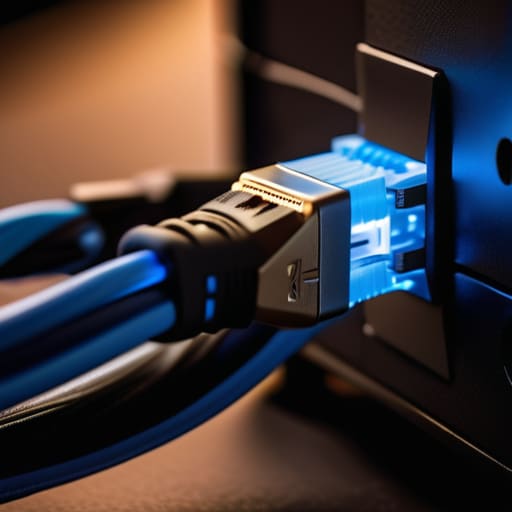
Look, I’ve spent enough nights debugging local area networks for friends to tell you that if you’re serious about competitive play, stop blaming your ISP immediately. Most of the time, it isn’t an external signal issue; it’s your own environment. When it comes to ethernet vs wifi stability, there is no contest. I’ve tested wireless setups in rooms with zero interference and still seen jitter that makes a shooter unplayable. Wi-Fi is a shared medium—every microwave, Bluetooth speaker, and neighbor’s router is fighting for the same airwaves. If you want to reduce ping spikes permanently, you need a physical copper line.
If you absolutely cannot run a cable through your walls, you need to stop treating your Wi-Fi like a magic wand. Most people ignore network latency troubleshooting until their character teleports behind a wall. At the very least, switch to the 5GHz or 6GHz band and get as close to the access point as possible to minimize physical obstructions. But honestly? If you’re tired of the stuttering, just buy a Cat6 cable. It’s a ten-dollar fix that solves more problems than any software tweak ever will.
Network Latency Troubleshooting Without the Fluff

If your packet loss isn’t coming from a physical cable or a dying router, you’re likely fighting your own data traffic. Most people ignore bufferbloat, but it’s the silent killer of competitive play. This happens when your router gets overwhelmed by too much data at once—like someone in the next room starting a 4K Netflix stream while you’re mid-clutch. If your ping is fine one second and then suddenly jumps to 300ms the next, you aren’t experiencing “lag”; you’re experiencing congestion. A quick bufferbloat fix usually involves enabling SQM (Smart Queue Management) in your router settings to prioritize gaming traffic over everything else.
Next, stop blaming your hardware if the problem is actually your routing. Sometimes, it’s just isp connection issues where your provider is sending your data on a scenic tour of the country before it hits the game server. I’ve run trace routes on everything from budget fiber to high-end cable, and if you see a massive jump in milliseconds at a specific node, there’s nothing you can do locally. In those cases, the only real way to reduce ping spikes is to try a gaming VPN that forces a more direct route to the server, or just accept that your provider’s peering sucks.
5 Ways to Stop Your Data From Vanishing into the Void
- Kill the Wi-Fi if you actually care about stability. I don’t care how fast your 6E router claims to be; if you’re playing a competitive shooter, a $10 Cat6 cable is going to beat a $400 mesh system for packet consistency every single time.
- Check your router’s QoS (Quality of Service) settings. If your roommate is streaming 4K Netflix in the next room and your ping is spiking, your router is likely prioritizing their video buffer over your game packets. Set your gaming rig as the priority device.
- Update your network drivers, but don’t just click ‘check for updates’ in Windows. Go to the actual manufacturer’s site—Intel, Realtek, whatever—and grab the specific driver for your NIC. Windows Update is notorious for installing generic drivers that work fine for browsing but choke under heavy gaming loads.
- Disable any unnecessary background bandwidth hogs. I’m talking about Steam auto-updates, Windows Update delivery optimization, or even a browser tab with a Twitch stream running in the background. If your bandwidth is being eaten by a 50GB patch mid-match, your packets are going to get dropped.
- Look at your hardware’s physical health. If you’re using an old, frayed Ethernet cable or a cheap unshielded one running right next to a power brick, you’re going to get electromagnetic interference. If the cable feels sketchy or looks bent, swap it out for a fresh shielded one before you start blaming your ISP.
The TL;DR on Stopping the Stutter
If you’re playing competitive shooters on Wi-Fi, you’re playing at a disadvantage; switch to a Cat6 Ethernet cable to eliminate the packet drops caused by signal interference.
Stop blaming your ISP for every spike and check your local hardware first—a dying router or an overheating modem will drop packets long before your provider does.
Check your background bandwidth hogs; if a Steam update or a Windows telemetry task is eating your upload speed, your game data is going to get stuck in the queue.
The Reality of Packet Loss
“Stop blaming your ISP for every single stutter; half the time you’re just trying to push high-fidelity data through a wireless connection that’s fighting for its life in a room full of interference. If you want stability, you stop guessing and start looking at the actual path your data is taking.”
Denny Kowalczyk
Stop Chasing Ghosts and Start Fixing the Connection
Look, if you’ve gone through this list and your ping is still spiking or your character is still rubber-banding back to a wall, you aren’t dealing with a “glitch”—you’re dealing with a physical bottleneck. We’ve covered the essentials: ditch the Wi-Fi for a Cat6 Ethernet cable if you actually want stability, check your router’s firmware so it isn’t choking on its own data, and stop running heavy background downloads while you’re trying to climb the ranked ladder. Most of the time, packet loss isn’t some mysterious ghost in the machine; it’s just a bad cable or a router that’s been running since 2018 and is begging for retirement. Stop ignoring the hardware basics and start treating your network like the critical component it is.
At the end of the day, no amount of “gaming” software or overpriced optimization tools is going to fix a fundamentally broken signal path. I’ve spent way too many nights staring at a stuttering screen only to realize I was trying to win a match on a connection that was effectively dead on arrival. Don’t let a shitty connection ruin a great game or make you feel like you’re losing skill when you’re really just losing data. Fix the pipes, stabilize the signal, and then get back to the game. You’ve done the work; now go actually play.
Frequently Asked Questions
I've switched to Ethernet but I'm still getting packet loss; could it be my router's hardware or is my ISP actually throttling me?
If you’re wired in and still dropping packets, you’ve moved past the “easy fix” stage. First, check your router’s CPU load; if you’re running a dozen smart devices and a torrent client, the hardware might just be choking. If the router’s fine, it’s likely your ISP or a bad line. Run a continuous ping test to your gateway, then to a public DNS like 8.8.8.8. If it drops at the gateway, it’s your gear. If it’s after, it’s the ISP.
Does running a VPN actually help stabilize my connection, or is it just adding more latency to the mix?
Here’s the deal: most of the time, a VPN is just an extra stop for your data, which adds latency. If you’re playing on a clean line, a VPN will almost certainly tank your ping. However, if your ISP is aggressively throttling your traffic or your routing to a specific game server is absolute garbage, a VPN can actually smooth things out. If your ping is steady but you’re seeing packet loss, try it. If your ping is already high, stay away.
Can my PC's network drivers or background apps like Discord and Chrome actually cause data drops during a match?
Yeah, they absolutely can. If your network drivers are outdated or corrupted, your OS is basically trying to speak a language your router doesn’t understand anymore. As for Discord and Chrome? It’s not just about “using bandwidth.” It’s about CPU interrupts and packet prioritization. If Chrome is eating your cycles or a background update starts a heavy handshake in the middle of a match, your packets get queued, delayed, or just dropped entirely.
