I spent three hours last night staring at a menu screen in a tactical shooter, trying to figure out why my pinky finger felt like it was undergoing a slow-motion fracture. Most “pro” guides tell you to just copy a streamer’s layout, but that’s absolute nonsense; they have different hand sizes, different mouse weights, and usually a lot more money to burn on custom peripherals than you do. If you’re stuck wondering how to configure keybinds that actually work for your specific anatomy instead of some generic “optimal” setup, you’re already fighting a losing battle against the game’s default settings. It shouldn’t feel like a chore just to get your movement and abilities on the same plane of existence.
I’m not here to give you a three-thousand-word dissertation on the philosophy of input latency. I’ve spent enough time rebuilding PCs and tearing down game engines to know that a bad layout is just as much a hardware bottleneck as a dying GPU. I’m going to show you exactly how to strip away the clutter and build a layout that relies on muscle memory, not frantic finger gymnastics. No fluff, no paid sponsorships, just the specific logic you need to stop fighting your controls and start actually playing the game.
Table of Contents
- Input Device Optimization Cutting the Fat From Your Setup
- Reducing Input Latency Instead of Chasing Ghost Specs
- Stop Fighting Your Keyboard: 5 Ways to Actually Map Your Controls
- The Bottom Line on Your Setup
- Stop Defaulting to Factory Settings
- Stop Fighting Your Hardware and Start Playing
- Frequently Asked Questions
Input Device Optimization Cutting the Fat From Your Setup
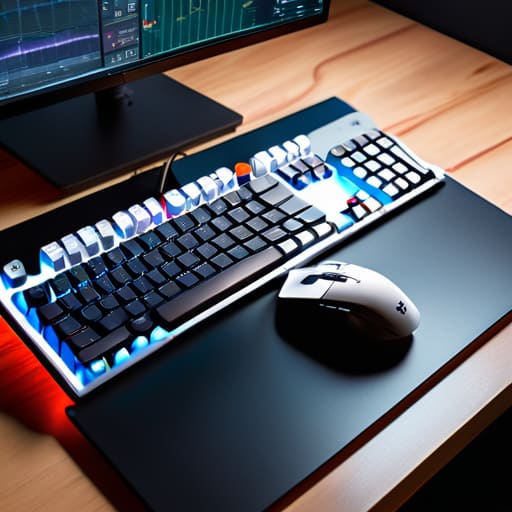
Most people think a better mouse or a mechanical keyboard is a magic fix, but if your software is fighting your hardware, you’re just wasting money. True input device optimization starts with stripping away the bloat. If you’re running heavy, RGB-syncing software that eats up 5% of your CPU cycles just to make your keys pulse rainbow, you’re effectively increasing input latency for no reason. I’ve seen builds that look like a neon fever dream but struggle to maintain a stable 144Hz because the background processes are choking the system.
Stop relying on the default “out of the box” configurations. If you’re on a controller, stop trying to play every game with a generic preset; look for customizable controller layouts that move your most vital actions—like dodging or reloading—to the paddles or back buttons. It’s about muscle memory, not aesthetics. If you’re using a keyboard, use dedicated keyboard mapping software to kill any macros you don’t actually use. If a key isn’t helping you react faster or making your workflow smoother, it’s just extra clutter getting in your way.
Reducing Input Latency Instead of Chasing Ghost Specs
Stop obsessing over whether your mouse has a 26,000 DPI sensor when your actual bottleneck is the software overhead. I’ve seen people drop three hundred bucks on a “pro” mouse only to run it through bloated, proprietary keyboard mapping software that adds more delay than a bad Wi-Fi connection. If you want real results, stop chasing ghost specs and start reducing input latency at the OS level. Turn off everything you don’t need, disable Windows Enhance Pointer Precision (which is just fancy talk for mouse acceleration), and make sure your polling rate is actually set to 1000Hz or higher in the actual driver settings.
It’s also about how your hardware talks to your game. I’ve spent too many nights troubleshooting why a frame feels “heavy” despite a high FPS counter. Often, it’s because your gaming peripheral settings are fighting against your game’s engine. If you’re on a controller, stop relying on the default, clunky presets; look into customizable controller layouts that place your most vital inputs on the sticks or triggers to minimize the travel time between your brain and the action.
Stop Fighting Your Keyboard: 5 Ways to Actually Map Your Controls
- Prioritize your “panic” keys. If you’re playing a competitive shooter or a soulslike, your dodge, parry, or reload shouldn’t be buried under a finger-stretching reach. If you have to think about where the button is, you’ve already lost the fight.
- Use the mouse for more than just aiming. If you’re playing an MMO or a complex RPG, map your most frequent abilities to side mouse buttons. It keeps your left hand focused on movement and prevents that awkward “claw” tension when you’re trying to hit three different keys at once.
- Audit your “default” settings immediately. Devs often use generic layouts that work for a broad audience but suck for anyone with specific hand sizes or playstyles. Don’t assume the factory settings are optimized; they aren’t.
- Minimize “chorded” inputs. If a game requires you to hold Shift, Ctrl, and a key simultaneously to perform a basic action, your hand is going to cramp within twenty minutes. Rebind those combos to single, reachable keys to keep your APM (actions per minute) high without the physical strain.
- Match your binds to your muscle memory across genres. If you move from a tactical shooter to a fast-paced arena shooter, don’t reinvent the wheel every single time. Keep your movement and core interaction keys consistent so your brain doesn’t have to relearn how to walk every time you launch a new Steam title.
The Bottom Line on Your Setup
Stop chasing “pro” gear that costs more than your monthly rent; focus on lowering your input lag through polling rates and disabling unnecessary background processes first.
If you’re playing something fast-paced, move your most critical actions to keys that don’t require you to take your fingers off the WASD cluster—your muscle memory will thank you.
Don’t just set and forget; if a game feels “off,” check your raw input settings and kill any software-level mouse acceleration that’s actively lying to your hand.
Stop Defaulting to Factory Settings
If you’re still playing on the default keybinds just because the game came with them, you’re essentially playing with one hand tied behind your back. Your setup should work for your hands, not the other way around—stop trying to adapt to the software and start making the software adapt to your muscle memory.
Denny Kowalczyk
Stop Fighting Your Hardware and Start Playing
Look, at the end of the day, configuring your keybinds isn’t about finding some magical “pro settings” that some YouTuber claims will turn you into a Tier 1 esports player overnight. It’s about removing the friction between your brain and the screen. We’ve covered how to trim the fat from your input devices, how to kill unnecessary latency so your clicks actually register when you want them to, and why you should stop letting default presets dictate your playstyle. If your fingers are reaching across your keyboard for a key that should be right under your pinky, you aren’t playing the game; you’re fighting your own setup. Get your layout sorted, verify your polling rates, and make sure your hardware is actually working for you instead of against you.
Once you’ve dialed in the technical side, the hard part actually begins: playing the game. Don’t get stuck in a loop of tweaking settings for three hours only to realize you haven’t actually played a single match. The goal of all this optimization is to make the technology completely invisible. You want to reach a point where you stop thinking about “pressing F to interact” and just start living in the game world. Fix your binds, optimize your latency, and then get out of the menus. The best setup in the world is useless if you’re too busy adjusting it to actually win.
Frequently Asked Questions
Should I use a controller for games with high-intensity keybinds, or is a mouse and keyboard always the better way to minimize input delay?
Look, if you’re playing a competitive shooter where every millisecond counts, stick to the mouse and keyboard. You aren’t going to beat a flick-shot with a thumbstick, period. But if the “high intensity” means a massive, complex macro layout—like an MMO or a heavy sim—a controller with back paddles can actually stop your hands from cramping. Don’t chase the “pro” setup if it’s making your gameplay clunky. Use what gives you the most consistent inputs.
Is it actually worth buying a dedicated macro keypad, or am I just paying for more RGB that I don't need?
Look, unless you’re a high-level MMO player or a video editor who lives in macro-heavy software, a dedicated keypad is usually just an expensive way to add more RGB to your desk. I’ve tested a few; if you aren’t hitting 15+ complex key combos per minute, you’re better off mapping your current mouse or using a programmable keyboard. Don’t pay the “niche hardware tax” just for the aesthetic. Save that cash for more VRAM.
How do I stop my custom keybinds from breaking every time a game pushes a mandatory update?
It’s usually because the update overwrote your local config file or shifted the input mapping. If you’re on PC, stop saving your binds directly in the game’s menu and start exporting your profiles to a separate folder or a cloud drive. Even better, if the game uses a `.ini` or `.cfg` file, keep a manual backup of that specific text file. When the patch hits, just copy-paste your old settings back in. It takes ten seconds.
